Social media is a giant video game, and if you’re a streamer, you’re probably not winning as much as you could be. Most creators are stuck downloading low-quality VODs or flat clips from Twitch that look terrible on a phone screen.
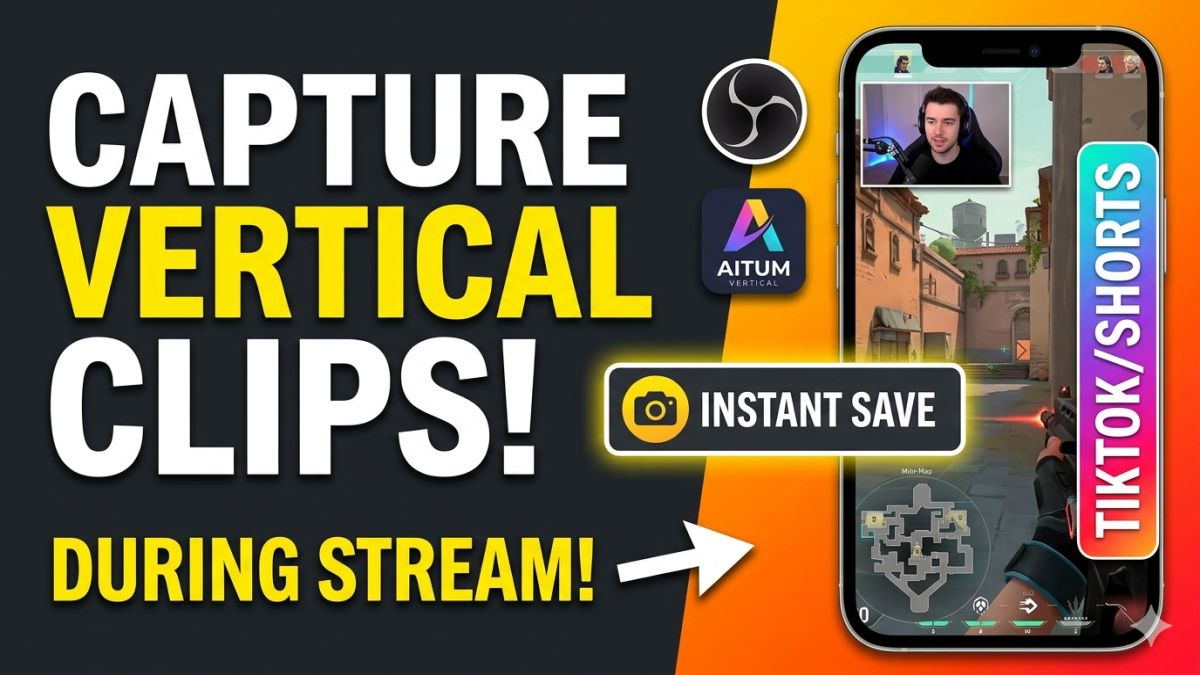
What if you could capture perfectly formatted 9:16 vertical clips with a single hotkey, complete with isolated audio and polished visuals, while you stream horizontally?
Here is the ultimate guide to turning your OBS into a vertical content powerhouse.
1. The Ultimate OBS Setup for Vertical Clips The Essential Plugin Toolkit
To bridge the gap between horizontal streaming and vertical recording, you need two backbone plugins:
- Aitum Vertical: This adds a second, dedicated vertical canvas and source list to your OBS.
- Source Clone: Essential for duplicating your game capture so you can apply filters or crops to the vertical version without messing up your main stream.
Pro Tip: Once installed, go to Docs > Full Height Docs in OBS to let your vertical canvas take up the full side of your screen.
2. Mastering the Vertical Layout
A “scroll-stopping” clip needs more than just a centered camera. You need to manage your screen real estate:
- The Safe Zone Rule: TikTok, Reels, and Shorts overlay their own buttons (Like, Share, Profile) on the right side and bottom of the screen. Use a Safe Zone Overlay (available at GamingCareers.com) as a temporary image layer to ensure your face or the kill-feed isn’t hidden behind a UI button.
- UI Masking (The Secret Sauce): Don’t let your vertical clip look empty. Use a mask to “cut out” your game’s mini-map, health bar, or ammo count. Overlay these specific elements onto the vertical canvas so your viewers always know what’s happening in the game.
3. Professional Audio: The Multi-Track Advantage
Nothing ruins a clip faster than a great gaming moment buried under loud music or a friend eating chips on Discord.
Instead of recording one messy “Stream Mix,” route your audio into 6 separate tracks:
- Track 1: Full Stream Mix (Backup)
- Track 2: Your Microphone (Isolated)
- Track 3: Game Audio
- Track 4: Discord / Chat
- Track 5: Music
- Track 6: Alerts / Browser
When you drop this file into DaVinci Resolve or Premiere Pro, you’ll see separate waveforms. You can mute the music or lower your friends’ volume while keeping your reaction and the game sound crisp.
4. Optimized Recording Settings
To get “crispy” footage without lagging your game, use these settings in the Aitum Vertical configuration:
- Format: Use Hybrid MP4. It’s resilient against crashes (like MKV) but doesn’t require “remuxing” to work in video editors.
- Encoder: Always use hardware encoders (NVIDIA NVENC, AMD AMF, or Intel QuickSync).
- Bitrate: Aim for 20,000 to 50,000 Kbps. Since this is a local recording, you can afford higher quality than what you send to Twitch.
- The “Backtrack” Feature: This is essentially a Replay Buffer. Set it to 60–180 seconds. When something epic happens, hit your hotkey, and OBS saves the last few minutes of vertical glory instantly.
Resources Mentioned
- Safe Zone Checker: Gaming Careers Tools
- Aitum Vertical Plugin: Aitum.tv
- Source Clone: OBS Forum
- Webcam Masks: Nerd or Die