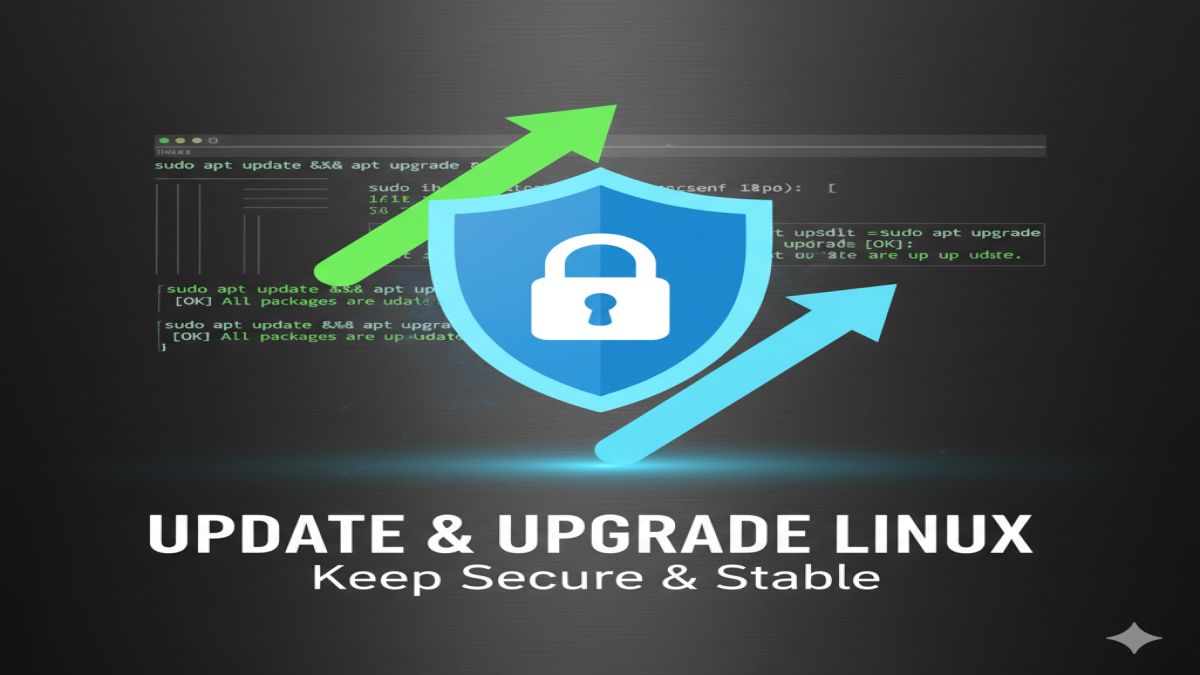
Keeping your Linux system up to date is essential for security, performance, and getting the latest features. This guide will walk you through how to update and upgrade your system using both the Terminal and the Graphical User Interface (GUI) — perfect for beginners!
Why You Should Update Your Linux System
Updating your system ensures:
- Security patches are applied
- Software bugs are fixed
- New features are added
- Your system stays compatible with modern apps
Method 1: Using the Graphical Interface (GUI)
If you’re new to Linux and prefer clicking over typing, here’s how to do it the easy way using your desktop environment.For Ubuntu / Linux Mint / Elementary OS:
These distributions use Ubuntu’s update manager, which makes updating very simple.
🔹 Step-by-Step Guide:
- Open the Update Manager
- Press the Super (Windows) key and search for “Update Manager” or “Software Updater”.
- Click to launch it.
- Wait While It Checks for Updates
- The tool will automatically check for updates.
- If updates are found, you’ll see a list of them.
- Click “Install Updates”
- Click the button and enter your password when prompted.
- The system will download and install everything for you.
- Restart if Required
- Some updates (like kernel or system updates) might require a restart.
- You’ll see a prompt if that’s necessary.
📝 Tip: You can also enable automatic updates from Settings > Software & Updates > Updates tab.
For Fedora:
Fedora uses GNOME Software for GUI updates.
Steps:
- Open Software from the application menu.
- Go to the Updates tab.
- Click Download and then Restart & Install Updates when ready.
For KDE Plasma (Kubuntu, KDE Neon):
- Open Discover (the KDE software manager).
- Click the Updates tab on the left.
- Click Update All to begin installation.
Method 2: Using the Terminal (For When You’re Ready)
Once you’re comfortable, the terminal is faster and gives more control.
For Ubuntu/Debian/Linux Mint (APT-based):
sudo apt update
sudo apt upgrade
apt updatechecks for new packages.apt upgradeinstalls the available upgrades.
👉 You can also use:
sudo apt full-upgrade
This handles dependencies better and upgrades everything possible.
For Fedora (DNF-based):
sudo dnf upgrade
For RHEL/CentOS (YUM-based):
sudo yum update
What’s the Difference Between update and upgrade?
| Command | What it does |
|---|---|
update | Refreshes the package list (checks for updates) |
upgrade | Installs available updates |
full-upgrade / dist-upgrade | Also removes or installs dependencies if needed |
How Often Should You Update?
- For desktops: Once a week is usually enough.
- For servers: Apply security updates daily.
- Enable automatic updates for background security updates.
Bonus Tip: Enable Automatic Security Updates (Ubuntu)
sudo apt install unattended-upgrades
sudo dpkg-reconfigure --priority=low unattended-upgrades
Final Thoughts
Updating your Linux system regularly is one of the easiest ways to keep it safe and running smoothly. Whether you prefer using a GUI or want to explore the terminal, Linux gives you both options.
📌 Quick Summary
| Task | GUI | Terminal |
|---|---|---|
| Check for updates | Update Manager / Software Center | sudo apt update / dnf upgrade |
| Install updates | Click “Install Updates” | sudo apt upgrade |
| Restart if needed | Prompted after updates | reboot if required |