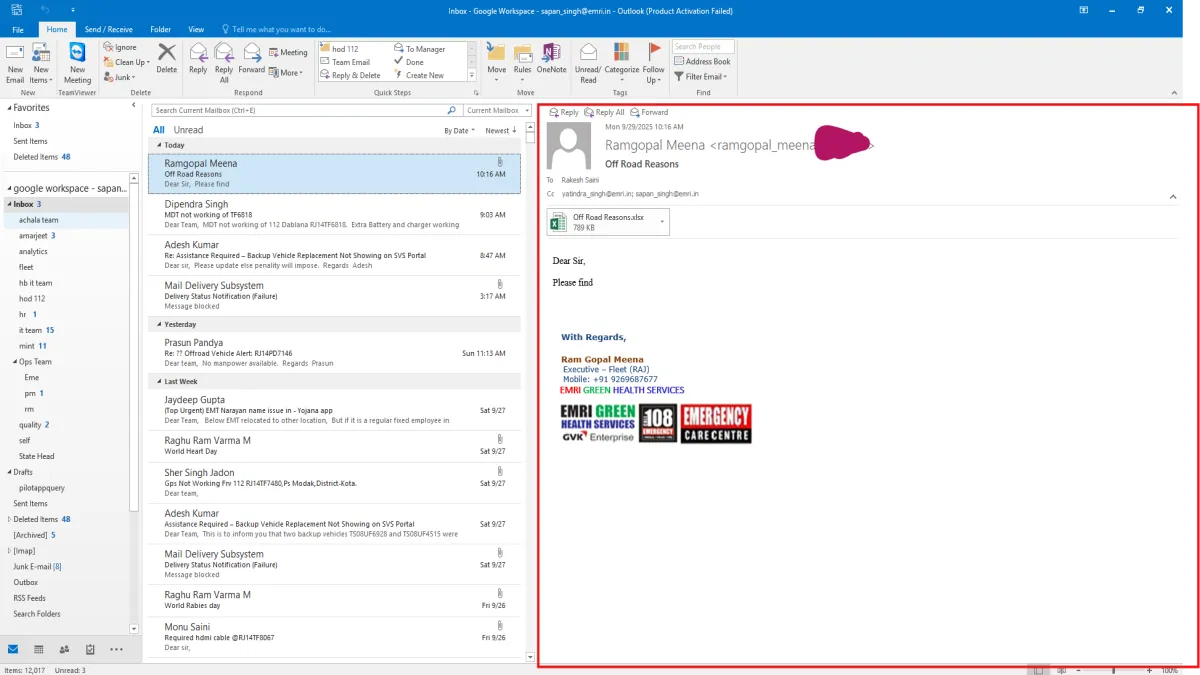
If you use Microsoft Outlook, you may have noticed a frustrating issue: when a new email arrives in an existing conversation (mail trail), all previous emails in that thread suddenly appear as unread. This can clutter your inbox and make it hard to track which emails are actually new.
In this guide, we’ll explain why Outlook marks all trail mails as unread and provide step-by-step solutions to fix it.
Why Outlook Marks All Trail Emails as Unread
Several factors can cause Outlook to incorrectly mark emails as unread:
- Conversation View Settings
- Outlook groups emails by conversation. If the conversation view is misconfigured, it may treat all messages in the thread as new.
- Reading Pane Options
- If “Mark items as read when viewed in the Reading Pane” is disabled, emails remain unread even after opening them.
- Faulty Add-ins or Rules
- Certain Outlook rules or third-party add-ins may mark all emails in a conversation as unread.
- Corrupted Outlook Profile or OST File
- A damaged profile or cache file can disrupt proper synchronization with the server.
- Sync Issues with Exchange or Office 365
- Cached Exchange Mode sometimes causes inconsistencies between the desktop client and the server.
How to Stop Outlook from Marking All Trail Mails as Unread
1. Check Conversation View Settings
- Open Outlook → View tab → Show as Conversations.
- Turn it off, restart Outlook, then turn it back on.
2. Adjust Reading Pane Settings
- Go to File → Options → Mail → Outlook Panes → Reading Pane.
- Enable “Mark items as read when viewed in the Reading Pane”.
- Set a timer of 5 seconds for marking items as read.
3. Test in Outlook Web (OWA)
- Log in to Outlook Web App (browser).
- If the problem does not appear online, the issue is specific to the desktop client.
4. Disable Add-ins
- Navigate to File → Options → Add-ins.
- Disable all add-ins and restart Outlook.
- If the issue resolves, re-enable add-ins one by one to identify the culprit.
5. Recreate Outlook Profile
- Close Outlook.
- Open Control Panel → Mail → Show Profiles → Add.
- Create a new profile and re-add the email account.
- Set it as the default profile.
6. Repair or Rebuild OST File
- Close Outlook.
- Navigate to:
%localappdata%\Microsoft\Outlook - Rename the existing .OST file.
- Restart Outlook to rebuild the OST and resync emails from the server.
Quick Tips
- If only one user is affected, the issue is likely profile-specific, not server-wide.
- Always test Outlook Web first to determine whether the problem is local.
- Regularly update Outlook to avoid bugs related to conversation view and sync.
Final Words
The Outlook “all trail mails showing as unread” issue can be annoying, but it’s usually solvable with simple adjustments. By checking conversation settings, reading pane options, disabling add-ins, or recreating the profile, you can stop Outlook from marking all trail emails as unread.