Hidden Features in Windows 11:Windows 11 has been around for a while now, and many users have already explored its sleek design and revamped interface. But beyond the obvious new look and feel, Windows 11 hides some powerful features that can make your computing experience smoother, more productive, and even fun. Whether you’re a casual user or a tech enthusiast, these 10 hidden gems in Windows 11 will surprise you!
1. Snap Layouts and Snap Groups – Multitasking Made Easy
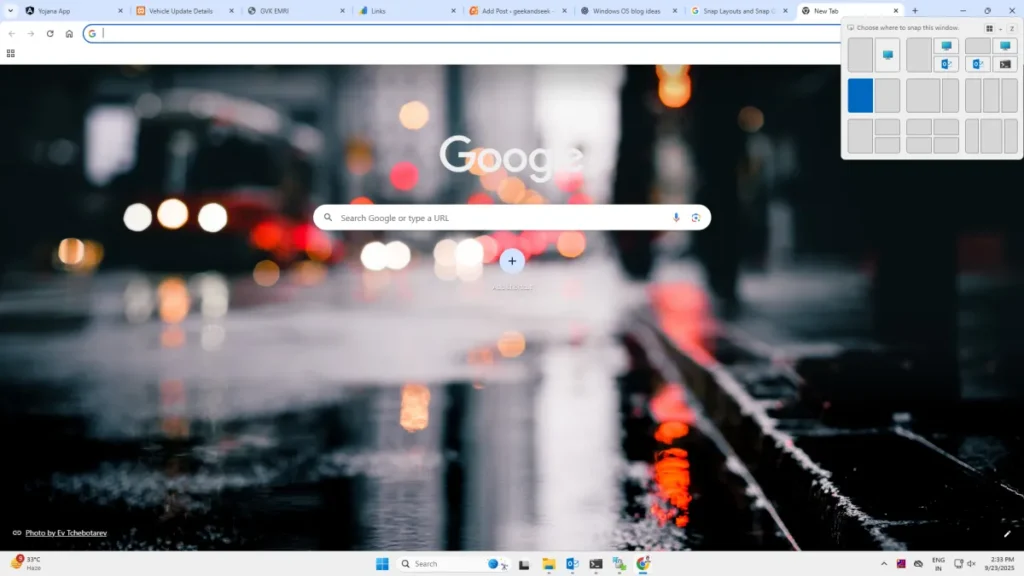
Hidden Features in Windows 11 Windows 11 takes multitasking to the next level with Snap Layouts. Hover over the maximize button on any window to see different grid layouts for arranging multiple apps on your screen. Choose a layout, and Windows will snap your apps perfectly into place.
Snap Groups remembers these layouts so you can switch back to your arrangement effortlessly, even after minimizing or switching tasks.
2. Virtual Desktops with Custom Backgrounds

Virtual Desktops have been improved, letting you create multiple desktops for different purposes—work, gaming, or personal use. What’s cool? You can assign custom wallpapers to each desktop to visually differentiate them.
Simply click Task View (Win + Tab) and create a new desktop, then right-click and choose “Choose background.”
3. Direct Integration of Microsoft Teams
Windows 11 has Microsoft Teams built-in, making it easier than ever to chat or video call right from your taskbar. No need to open a separate app — just click the Teams icon, sign in, and start connecting.
This is especially handy for remote workers and those who rely on quick communications.
4. New Widgets Panel
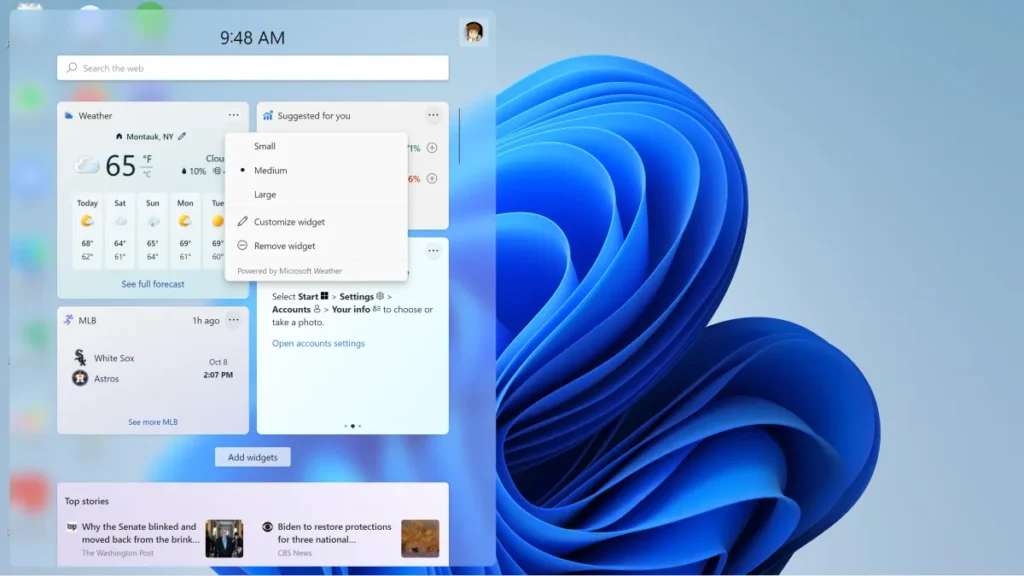
Windows 11 brings back widgets but in a sleek new way. The Widgets Panel slides in from the left and shows weather, news, calendar, stocks, and even your personalized feed powered by AI. You can customize which widgets show up and stay updated at a glance.
Access it by clicking the widgets icon on the taskbar or swiping from the left.
5. Snap Enhancements for Multiple Monitors
If you use multiple monitors, Windows 11 offers a subtle but powerful improvement — it remembers your snap layouts per monitor. When you unplug and plug back a monitor, your app layout restores automatically.
This feature saves tons of time setting up windows when moving between workspaces or home.
6. Dynamic Refresh Rate (DRR)
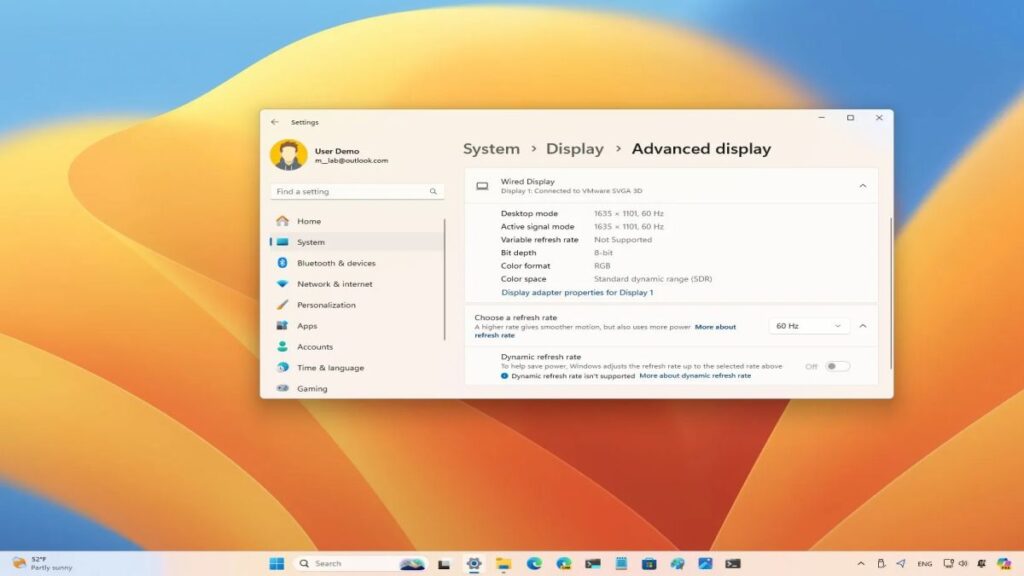
For laptops and tablets with compatible hardware, Windows 11 supports Dynamic Refresh Rate, which automatically adjusts the screen refresh rate to save battery or boost performance. For example, it lowers refresh rate during static tasks (like reading) and ramps up during video or gaming.
You can enable this feature in Settings > Display > Advanced display.
7. Focus Sessions with Spotify Integration
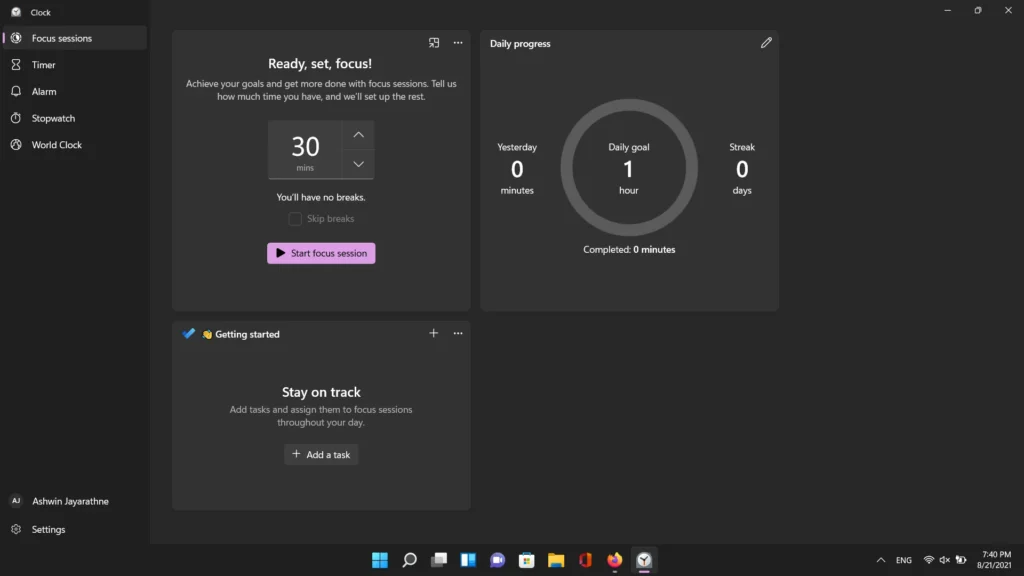
Windows 11 helps you concentrate with Focus Sessions inside the Clock app. You can set a timer, disable notifications, and even sync with Spotify to play calming background music while you work.
It’s a neat way to stay productive and minimize distractions without installing extra apps.
8. Redesigned File Explorer with Tabs
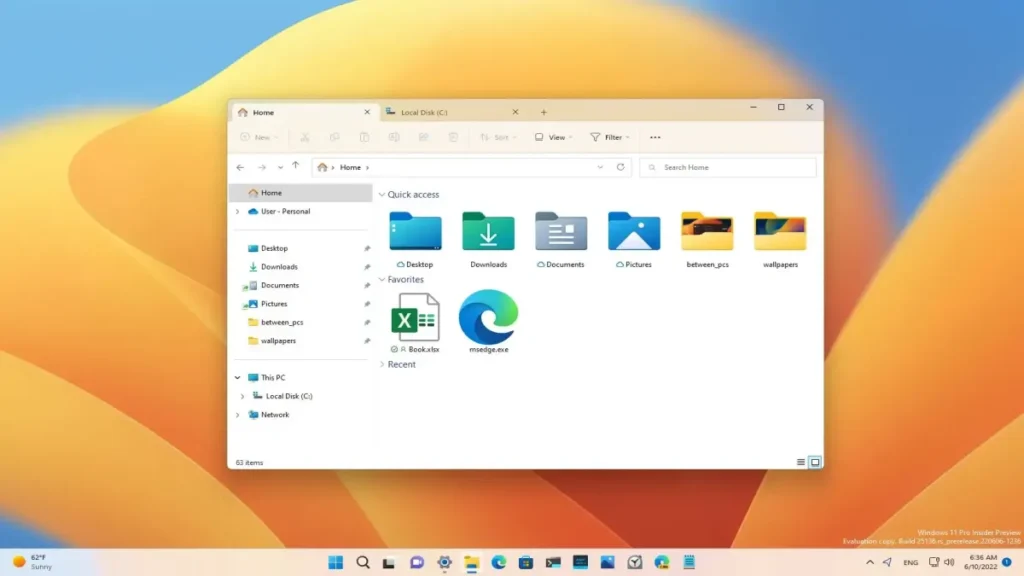
If you’ve ever wished for tabs in File Explorer (like a browser), your wish is coming true! Windows 11 is rolling out a tabbed File Explorer experience. Soon, you’ll be able to open multiple folders in tabs within a single window, making file management faster and cleaner.
Keep an eye on updates to try this one out.
9. Voice Typing and Commands
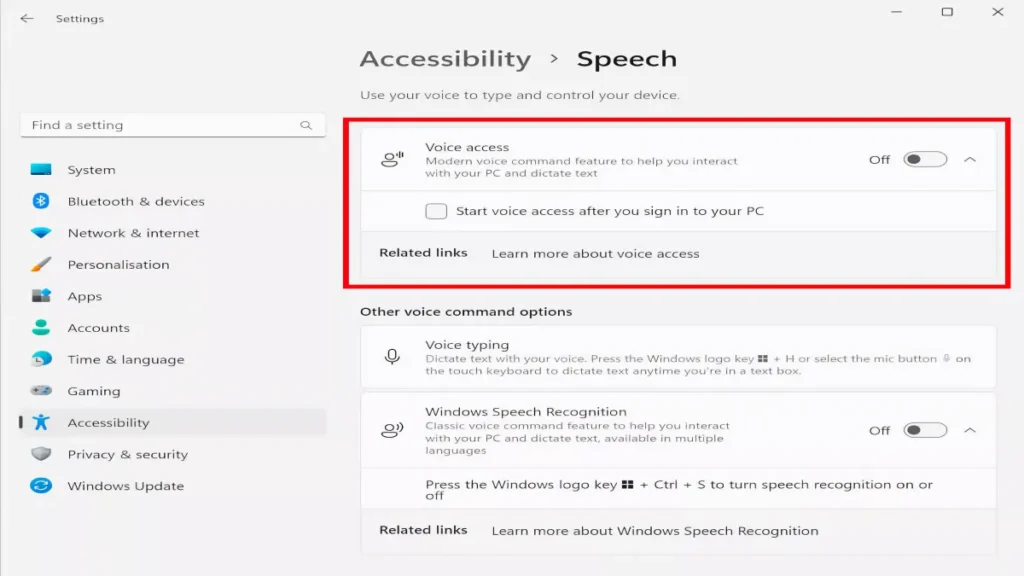
Windows 11 improves speech recognition with a new Voice Typing tool. Press Win + H to launch a floating dictation bar that lets you dictate text anywhere, with better accuracy and punctuation recognition.
It also supports simple voice commands for editing, making it great for hands-free typing.
10. Redesigned Settings App with Better Search
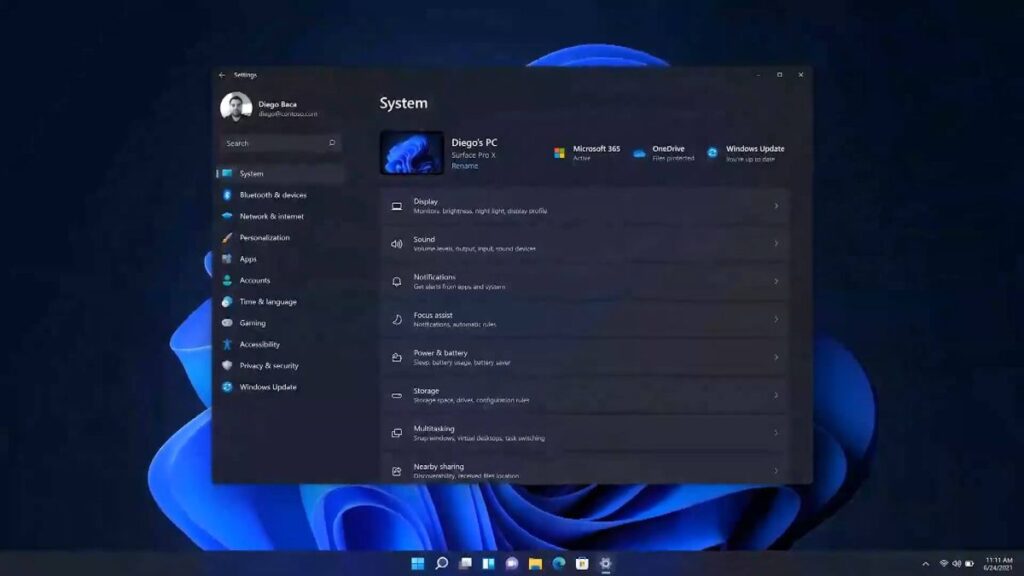
Windows 11’s Settings app is completely redesigned with a more intuitive layout and improved search. Finding specific settings has never been easier, thanks to the new sidebar navigation and smart suggestions as you type.
This reduces frustration for users who spend time hunting for system options.
Bonus Tips
- Clipboard History (Win + V): Access multiple clipboard items including text and images.
- Improved Touch Keyboard: Customizable themes and better autocorrect for tablet users.