Are you experiencing sluggish performance and noticing your disk is always at 100% usage in Task Manager? This is a common issue in Windows 10 and Windows 11, often caused by corrupted system files or software conflicts.
In this guide, you’ll learn how to fix 100% disk usage using two powerful built-in tools: SFC (System File Checker) and DISM (Deployment Imaging Service and Management Tool).
What Causes 100% Disk Usage in Windows?
Some common causes include:
- Corrupted system files
- Background services (like Superfetch/SysMain, Windows Search)
- Malware or bloatware
- Faulty drivers
- Incomplete Windows updates
Before tweaking any settings or uninstalling apps, try these safe and effective built-in repair tools.
Step 1: Run the System File Checker (SFC) Command
This tool checks for and repairs corrupted system files.
🔹 How to Run SFC:
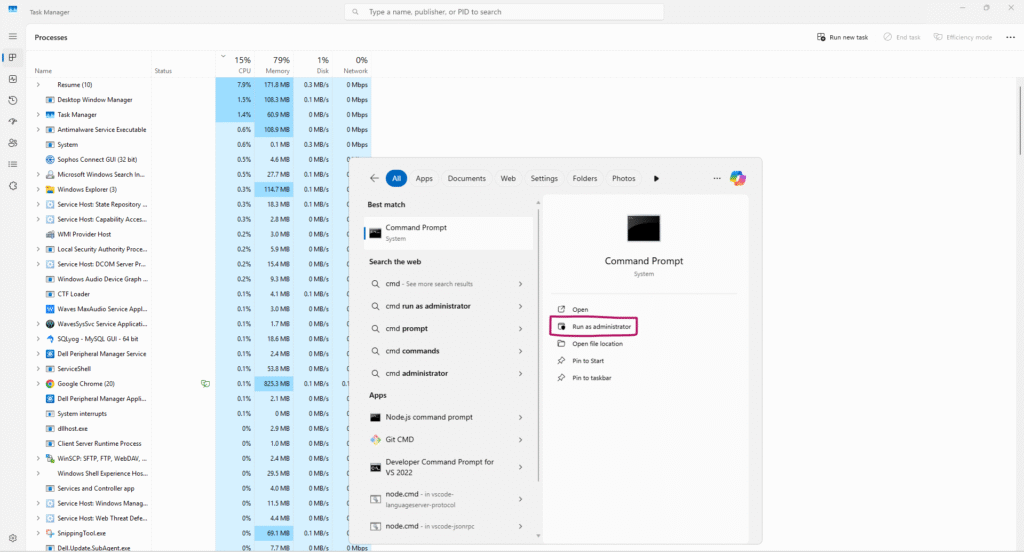
- Press
Win + Sand type cmd - Right-click Command Prompt → choose Run as Administrator
- In the black window, type the following command and press Enter:
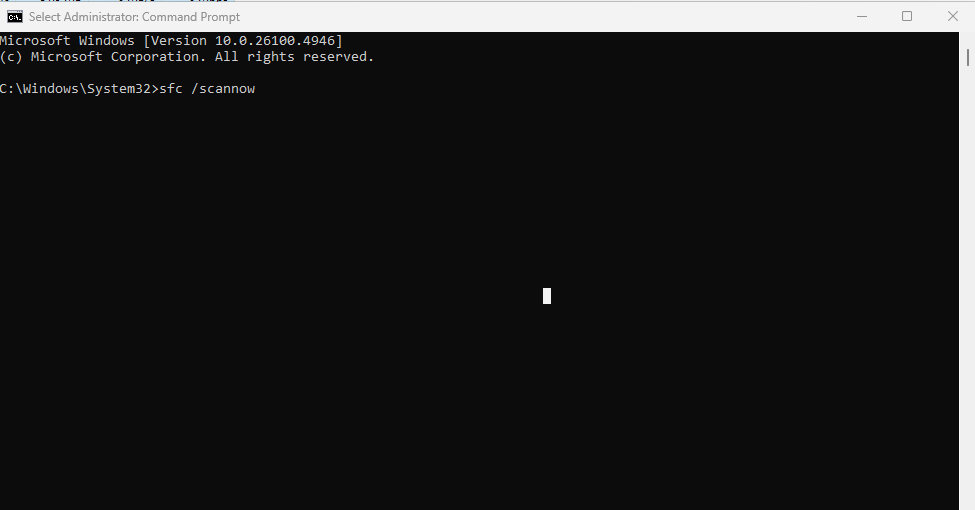
sfc /scannow
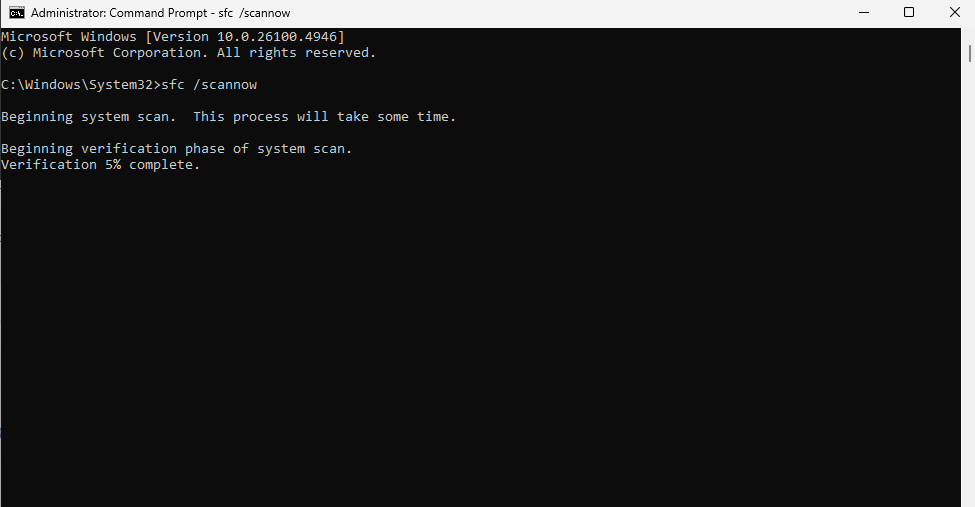
- Wait patiently. It might take 5–15 minutes to complete.
🔍 If it finds issues, it will attempt to repair them automatically.
Step 2: Run the DISM Online Repair Command
If SFC doesn’t fix everything, use DISM to restore the Windows system image.
🔹 How to Run DISM:
In the same elevated Command Prompt, type the following command:
DISM /Online /Cleanup-Image /RestoreHealth
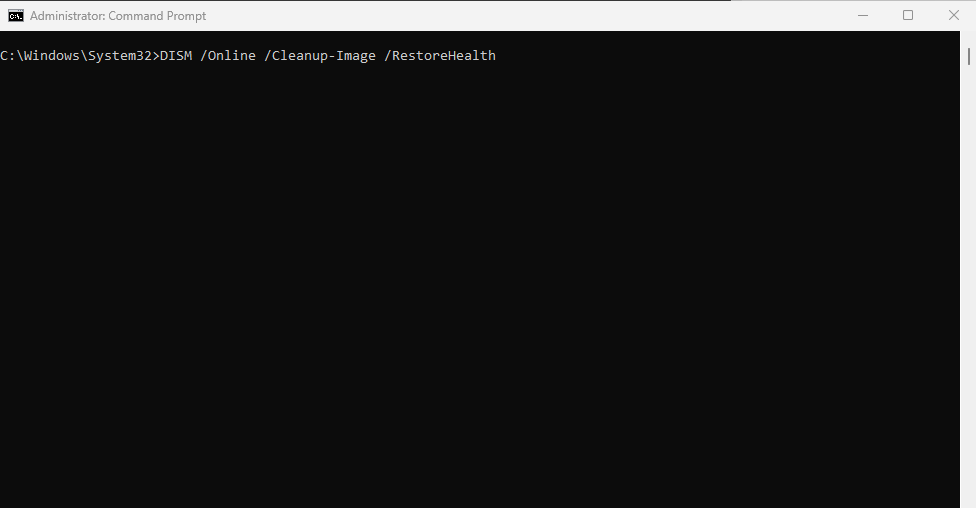
This command:
- Checks for component corruption
- Downloads clean files from Windows Update
- Replaces damaged system files
⏳ This can take 10–30 minutes, depending on your system and internet speed.
Optional: Re-run SFC After DISM
Once DISM finishes, it’s a good idea to run:
sfc /scannow
again to ensure all files are now properly repaired.
Check If Disk Usage Is Fixed
After the steps above:
- Press
Ctrl + Shift + Escto open Task Manager - Go to the Performance tab
- Check the Disk column
If it’s no longer at 100% consistently, your system should feel much faster.
Bonus Tips (If the Issue Persists)
- Disable SysMain (Superfetch):
sc stop "SysMain" & sc config "SysMain" start=disabled - Turn off Windows Search temporarily:
net.exe stop "Windows Search" - Update all drivers (especially storage and chipset)
- Perform a clean boot to check for software conflicts
Final Thoughts
Using SFC and DISM is one of the safest and most effective ways to fix the 100% disk usage issue without installing third-party software or resetting your PC. If this didn’t solve your problem, it could be due to deeper hardware or driver issues.