
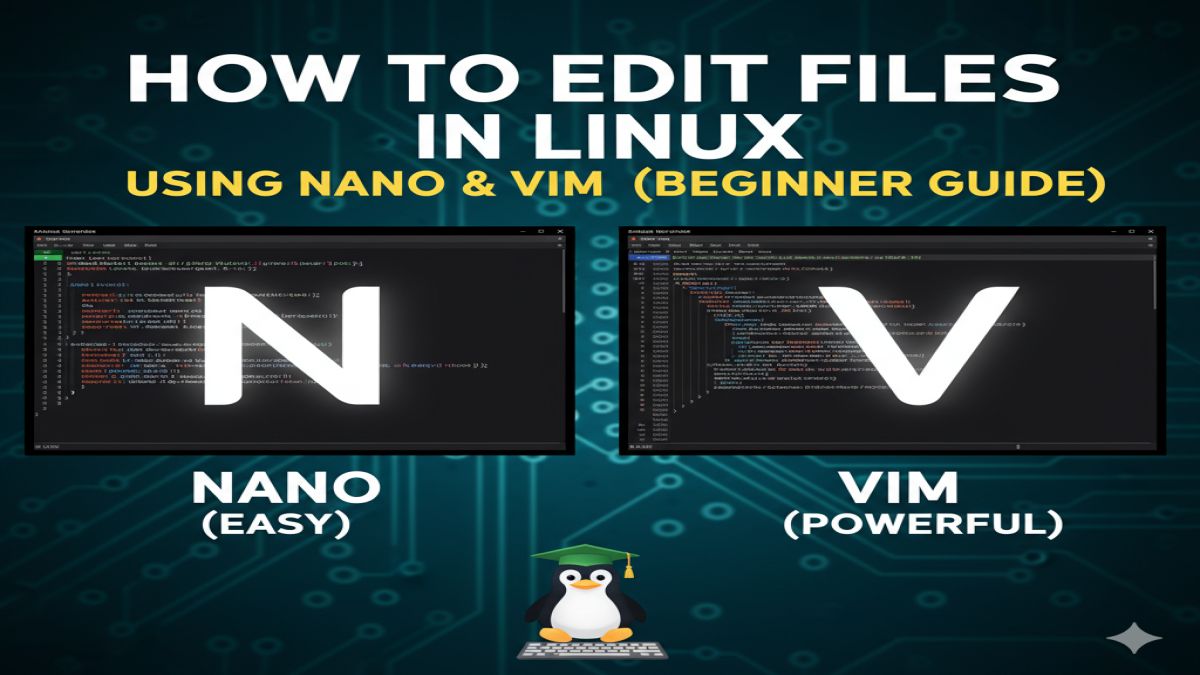
Editing Files in Linux with Nano and Vim :In Linux, graphical text editors like Gedit or VS Code are great — but when you’re working in the terminal, especially on servers, you’ll need to know how to use command-line text editors like Nano and Vim.
This beginner-friendly guide will teach you:
- What Nano and Vim are
- How to open, edit, save, and exit files
- Key commands and shortcuts
- Which editor is best for you
📄 What Are Nano and Vim?
| Editor | Description | Skill Level |
|---|---|---|
| Nano | Simple, easy-to-use terminal editor | Beginner |
| Vim | Powerful, feature-rich editor with modes | Intermediate–Advanced |
Both are pre-installed on most Linux systems and run entirely from the terminal.
🧸 Editing Files with linux Nano (Beginner-Friendly)
✅ Opening a File with Nano
nano filename.txt
- If the file exists, it opens it.
- If not, it creates a new one.
✏️ Editing in Nano
Just start typing — Nano works like a basic text editor.
💾 Saving Your Changes
- Press
Ctrl + Oto write out (save). - Press
Enterto confirm the file name.
❌ Exiting Nano
- Press
Ctrl + Xto exit. - If you made changes, Nano will ask if you want to save.
🧠 Nano Shortcut Cheatsheet
| Shortcut | Function |
|---|---|
Ctrl + O | Save (Write Out) |
Ctrl + X | Exit |
Ctrl + K | Cut line |
Ctrl + U | Paste line |
Ctrl + W | Search text |
Ctrl + G | Show help |
⚙️ Editing Files with Vim (The Power Tool)
Vim has a learning curve because it works in modes:
- Normal Mode – Navigate and run commands
- Insert Mode – Type and edit text
- Command Mode – Save, quit, etc.
✅ Opening a File with Vim
vim filename.txt
✏️ Start Editing in Vim
- Press
ito enter Insert Mode - Type your text as needed
💾 Saving & Exiting Vim
- Press
Escto return to Normal Mode - Type one of the following and press
Enter:
| Command | Action |
|---|---|
:w | Save file (write) |
:q | Quit Vim |
:wq or ZZ | Save and quit |
:q! | Quit without saving |
🧠 Vim Mode Cheatsheet
| Action | Key |
|---|---|
| Enter insert mode | i, I, a, o |
| Save and exit | :wq |
| Search for text | /text + Enter |
| Navigate (Normal Mode) | h (left), l (right), j (down), k (up) |
| Delete a line | dd |
| Undo | u |
| Redo | Ctrl + r |
🆚 Nano vs Vim: Which Should You Use?
| Feature | Nano | Vim |
|---|---|---|
| Learning Curve | Very easy | Steep |
| Editing Speed | Slower | Extremely fast (once learned) |
| Ideal For | Beginners, quick edits | Power users, developers |
| Installed By Default | Yes (most distros) | Yes (or Vim minimal) |
💡 Tip: Start with Nano. When you’re comfortable with the terminal, level up to Vim — it’s worth it.
👨💻 Examples of When to Use These Editors
- Nano:
- Editing config files:
nano /etc/hostname - Writing a quick script:
nano hello.sh
- Editing config files:
- Vim:
- Power editing on remote servers
- Editing large files with advanced navigation
🧠 Pro Tips
- Use
sudoif editing system files:sudo nano /etc/hosts sudo vim /etc/fstab - Try
vimtutorin the terminal to learn Vim interactively. - If Vim feels too hard, try Neovim or Micro editor for modern alternatives.
🔚 Conclusion
Knowing how to edit files in the terminal is a must-have Linux skill. Whether you choose the simplicity of Nano or the powerful features of Vim, mastering a command-line editor will make you faster, more efficient, and more capable — especially when working on remote servers or system administration tasks.
Start small, practice often, and soon the terminal will feel like second nature.





1 thought on “How to Edit Files in Linux Using Nano and Vim (Beginner Guide)”