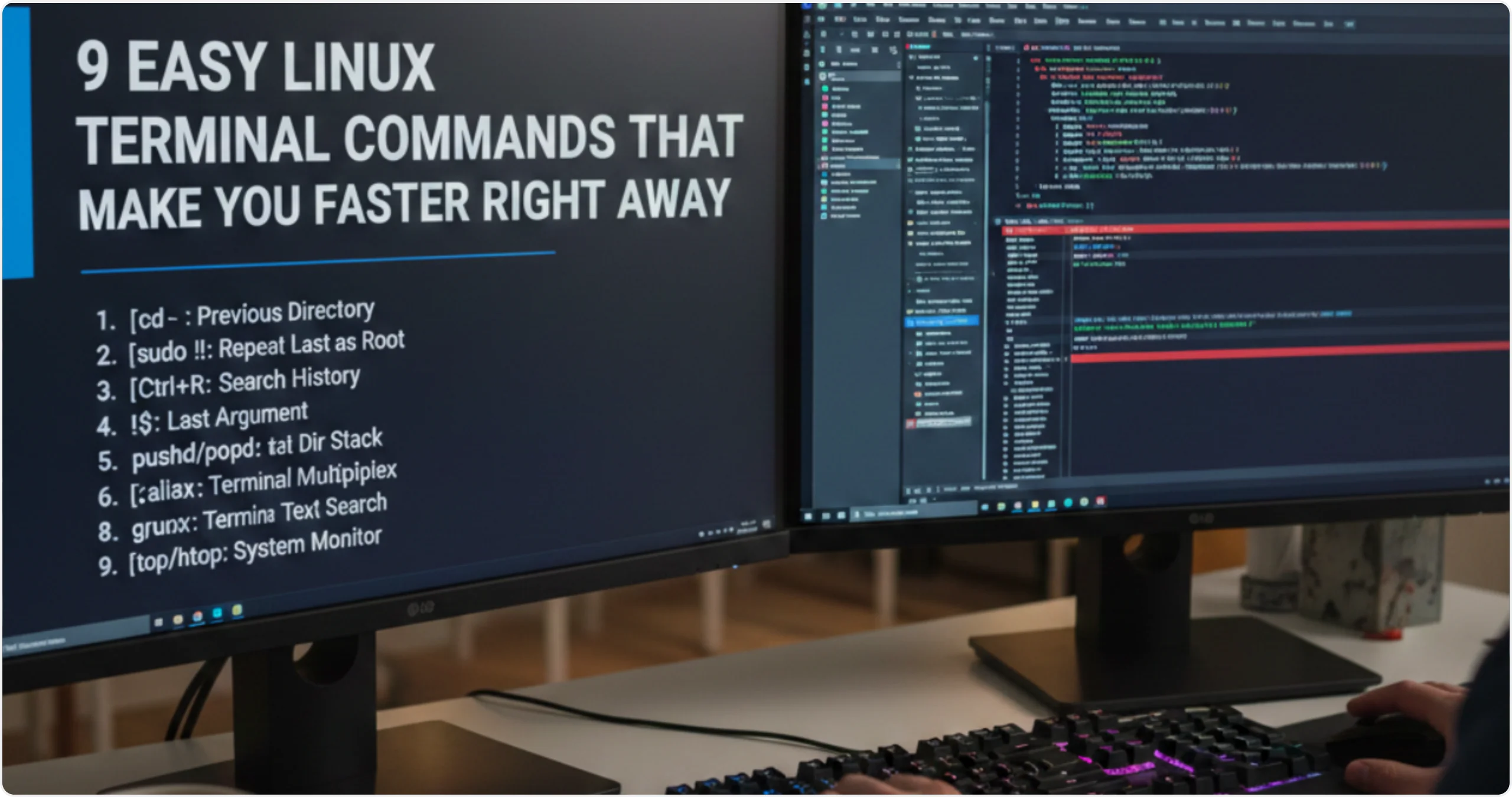
9 Simple Linux Terminal Commands That Make You Faster Right Away: If you don’t have a lot of experience working with the terminal, it might seem like an obtuse or intimidating black box. What you might not know is that the terminal can be fun to use. So much so, that you’re inclined to use the command-line over a GUI whenever possible. There is definitely a learning curve and the more you work with the terminal, the more fluent you become. However, there are some commands that everyone should know.
Scroll through the command history
Except for a handful of shells, pretty much every modern Linux shell supports history scrolling. Basically, you don’t have to re-type commands over and over. Instead, you can just use the up and down arrow keys to scroll through previously executed commands. Ctrl+P and Ctrl+N work too, for pulling up the previous and next commands.
Once you find your target command, you can just press the Enter key to instantly execute it. Or, you can modify and edit it before executing with the Enter key.
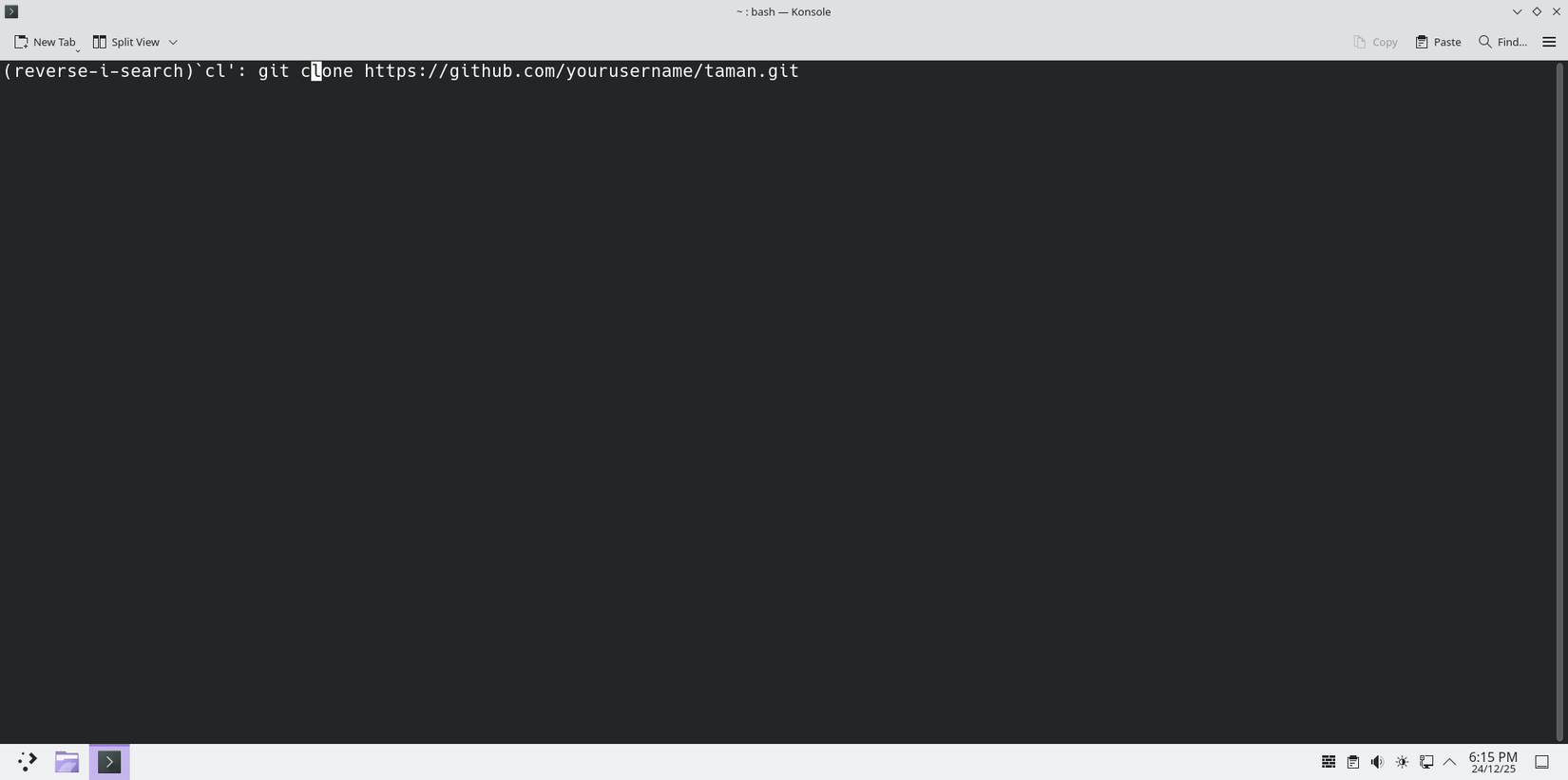
If your target command is too far back up in history to scroll manually, you can even search through every single command you’ve ever entered with the shortcut Ctrl+R.
Quickly run the previous command
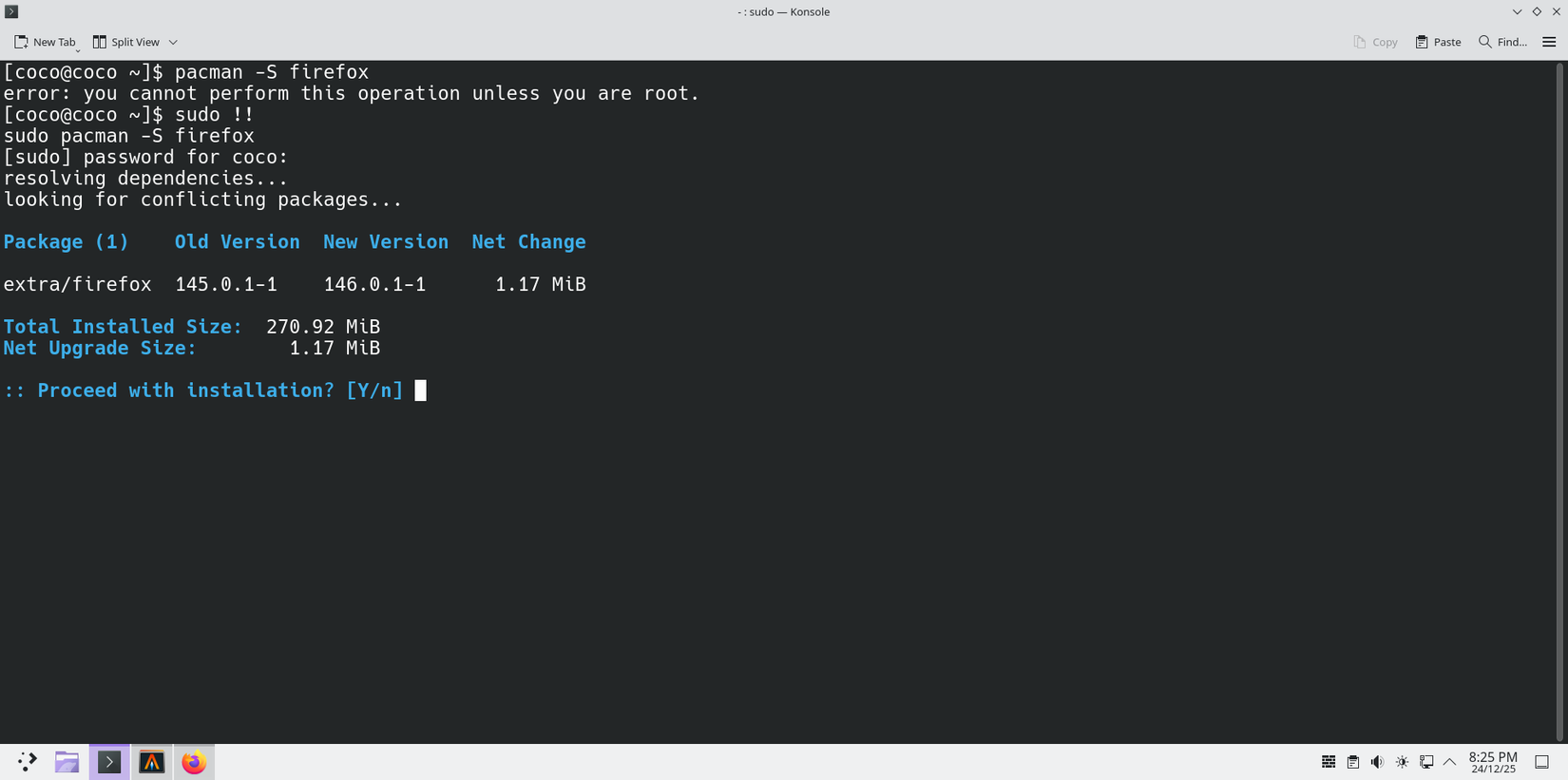
Sometimes a command might fail because it requires ‘sudo’ privileges. When that happens, it’s annoying to copy-paste or retype the whole command, appended with ‘sudo.’ Most modern shells allow you to reuse the last command with something called a bang bang expression. Here’s how it works.
Say, you tried running this command, but it failed because it requires ‘sudo.’
pacman -S firefox
Instead of typing the entire command again with ‘sudo,’ you can just type ‘!!’ and this expression will expand to the previously executed command.
sudo !!
Chain commands together
When you have a sequence of commands to run, you don’t need to run them one by one. The shell executes them in one go if you chain the commands together. The simplest way to do one-shot commands like that is with the semicolon ‘;’ operator.
mkdir foo; cd foo; touch foo.txt; ls
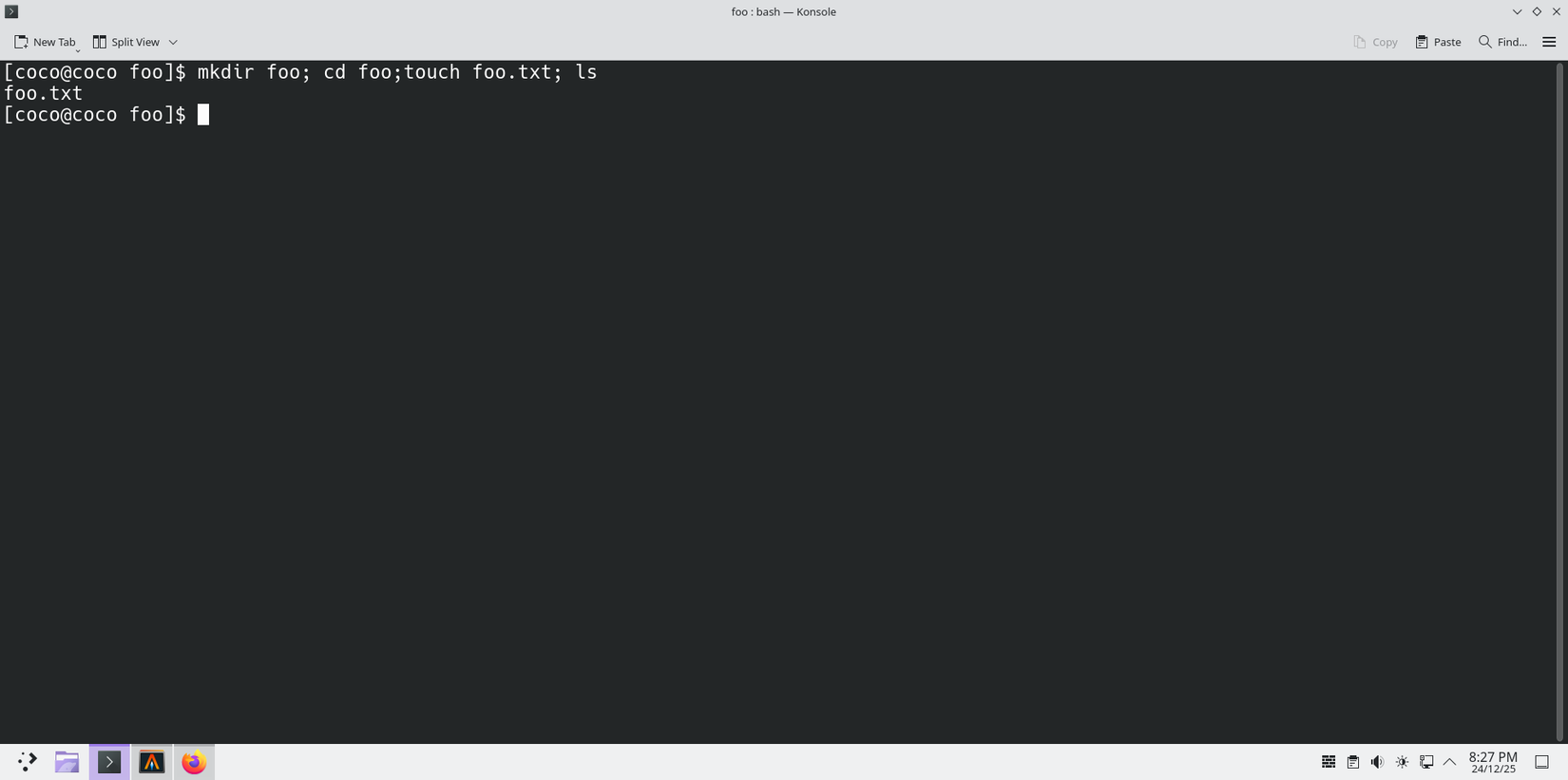
Use the ‘&&’ operator if you want to chain commands in a conditional way—that is, the next command should only run if the previous command ran successfully.
sudo apt update && sudo apt upgrade -y
Running this command will sync the repos and upgrade the packages all in one go without asking for user confirmation.
There are also pipe ‘|’ operators that handle sequential execution, even if the previous command fails.
Clear the screen
Most of the time, your terminal screen will fill up pretty quickly after running a few commands. To clear away the clutter and start fresh, you can run the clear command.
clear
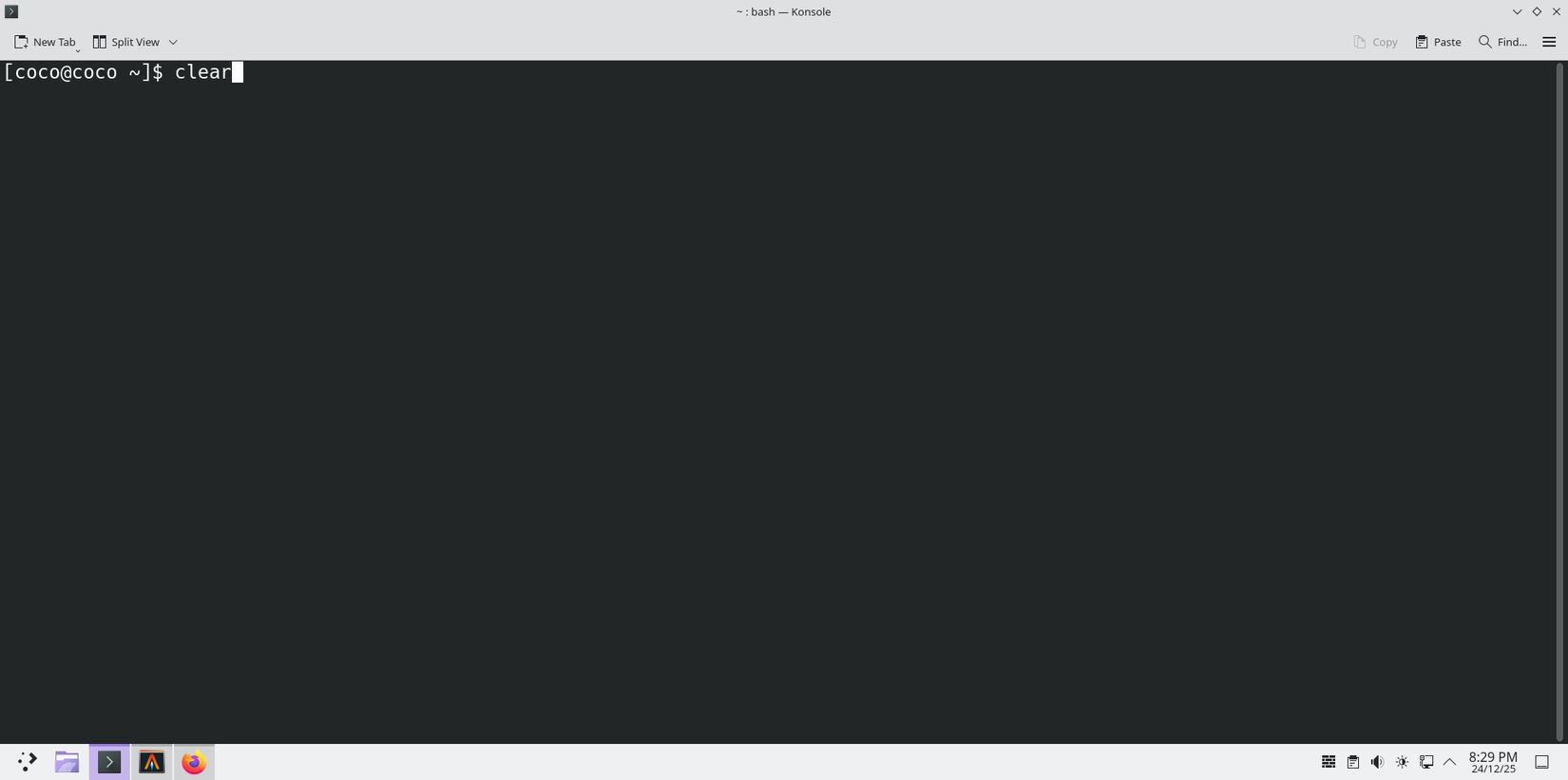
Alternatively, you can press the shortcut Ctrl+L. Both do the same thing, but my recommendation is to pick one and stick with it. This action becomes part of your muscle memory fairly quickly, so at times, you’ll clear the screen without even realizing it.
Instantly stop a command
If a command is stuck, taking too long to execute, or if you just want to push the big red button to instantly stop it, use the shortcut Ctrl+C. This shortcut interrupts a running command.
However, if Ctrl+C isn’t working, you can also try Ctrl+\. This shortcut force-quits and instantly terminates a command. This is really handy when a process is misbehaving.
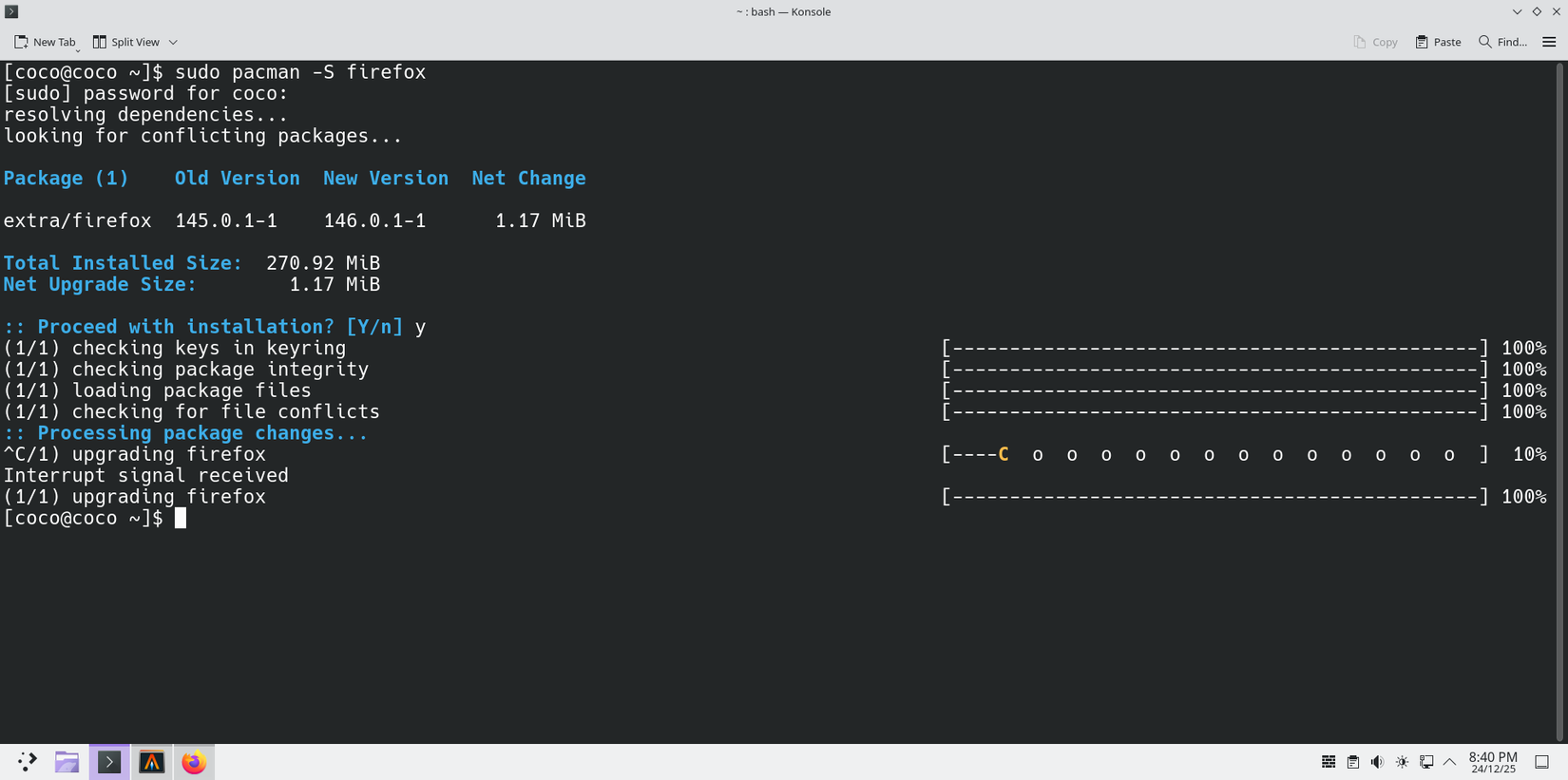
Sometimes a command either has to run continuously or might take a while to complete, and you don’t want to wait for it to complete. You can add a ‘&’ at the end of the command to run it in the background. Meanwhile, the shell will be freed up for the next input.
Find your current directory
Modern shells show a hint of the folder you’re in next to the prompt. However, if you need to find the directory you’re currently in, you can run a quick command.
pwd
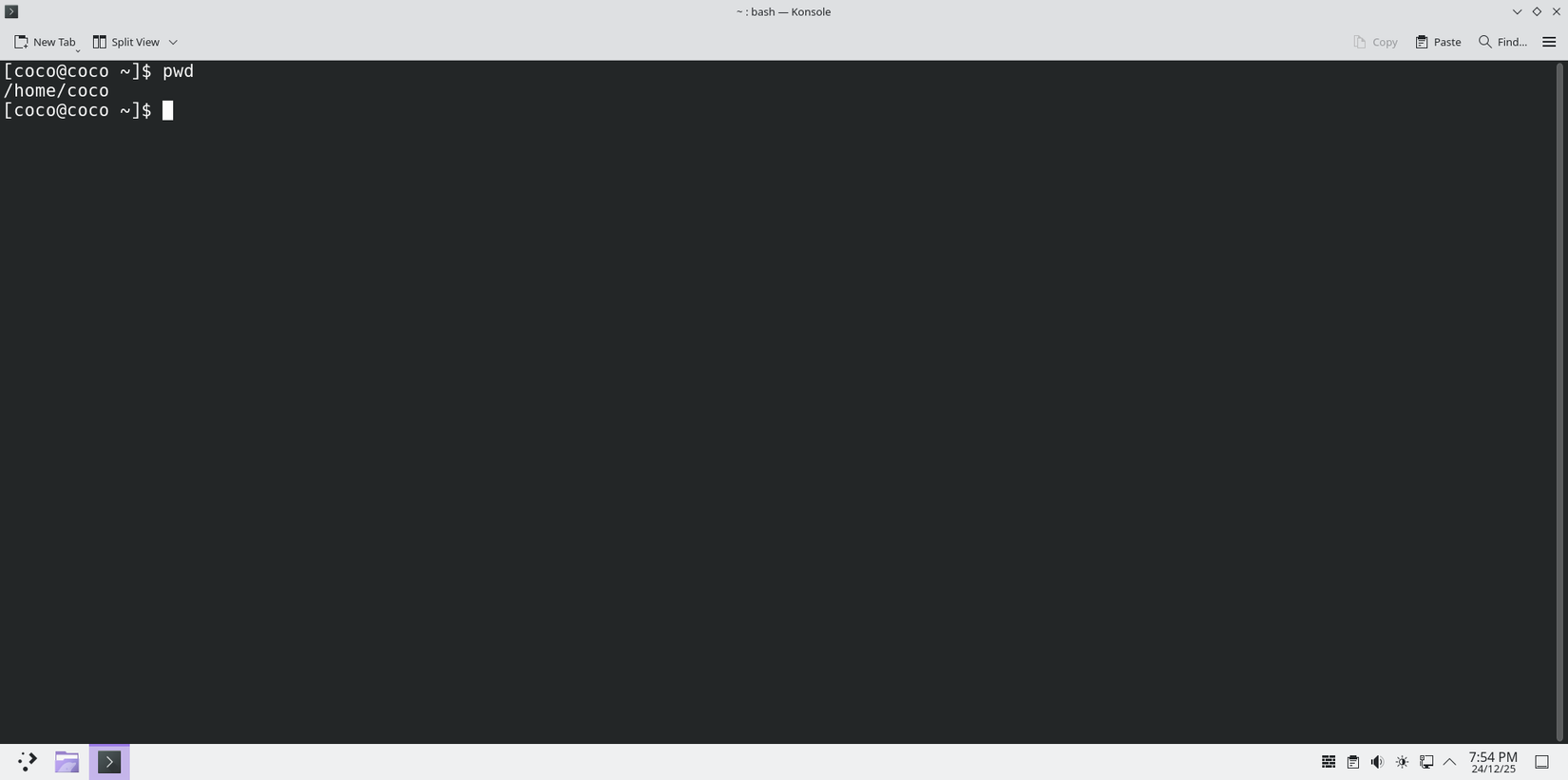
The ‘pwd’ command or the ‘Print Working Directory’ returns a path to your current location in the file system. You can copy it too, if need be.
Complete commands quickly
Modern Linux shells allow you to quickly autofill or complete commands. So instead of typing out the entire command, you can simply begin typing it and press Tab once or twice to autocomplete it. It saves so much time and energy.
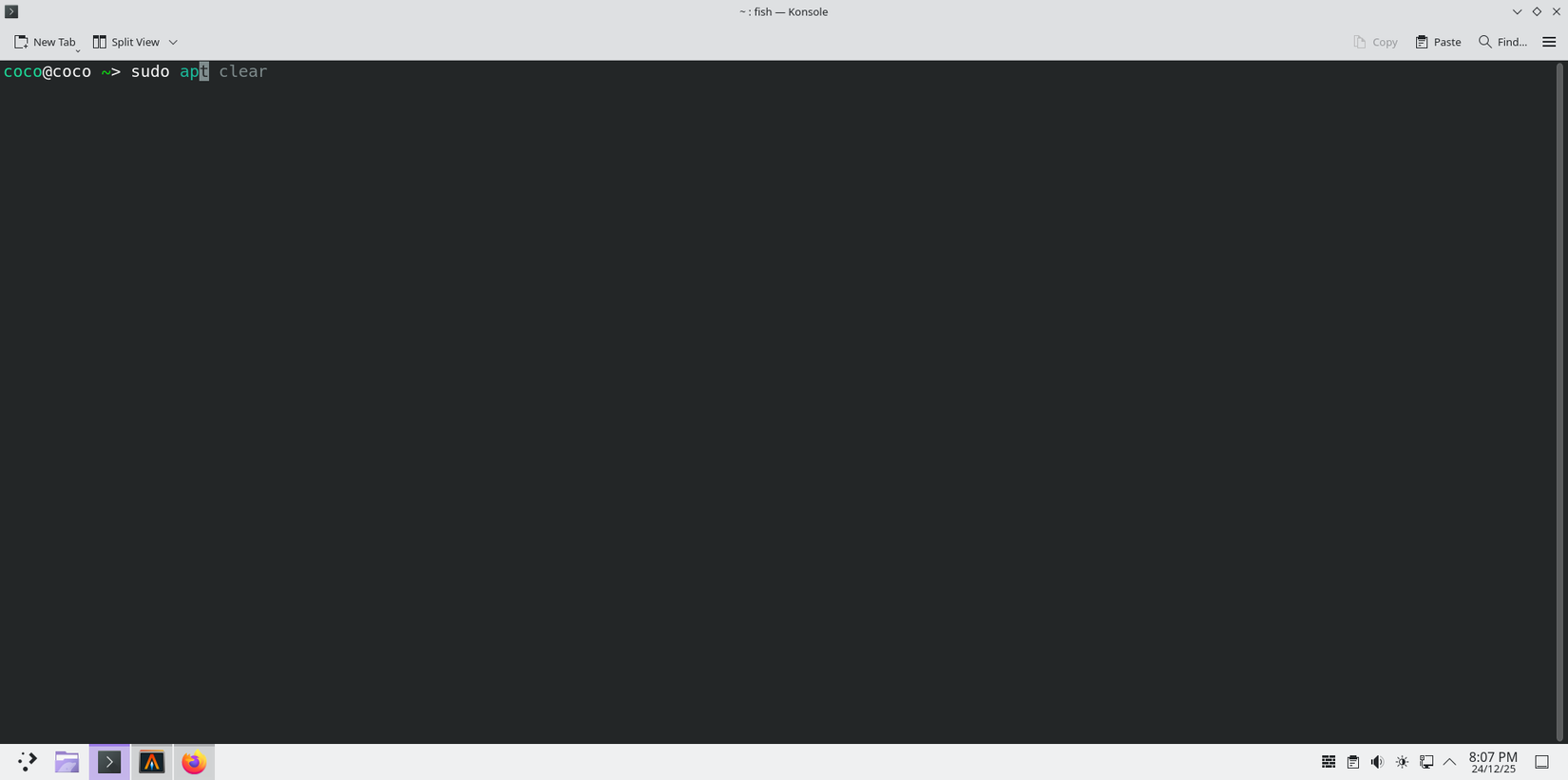
I use the Fish shell on my main workstation, and it even displays autofill suggestions as you type. You can then accept those suggestions by pressing the Tab key or the right arrow key.
Jump around the terminal
Most people use arrow keys to move the cursor across commands to make edits and modifications. But arrow keys are slow and waste time. Instead, you can use shortcuts to jump to the end or beginning of lines. Or jump from word to word.
Subscribe to our newsletter for essential terminal tips
Want deeper command-line confidence? Subscribe to the newsletter for curated terminal shortcuts, step-by-step command examples, and troubleshooting tricks to build shell fluency—plus expanded coverage of related Linux and developer tools.
The shortcuts might be a little bit different, depending on the shell you’re using. On the Fish shell, you can jump to the beginning of a line with Ctrl+A and to the end with Ctrl+E. Pressing Ctrl+ left or right arrow keys makes the cursor jump from word to word.
Use man or tldr when stuck
Since it’s an operating system made by users for the users, Linux and its software come with extensive documentation. You can access this documentation right within the terminal, without opening a new browser tab. Say you installed a new command-line tool like ‘yt-dlp’ but you have no idea how to operate it. You can just run a command like this to get helpful hints.
tldr yt-dlp
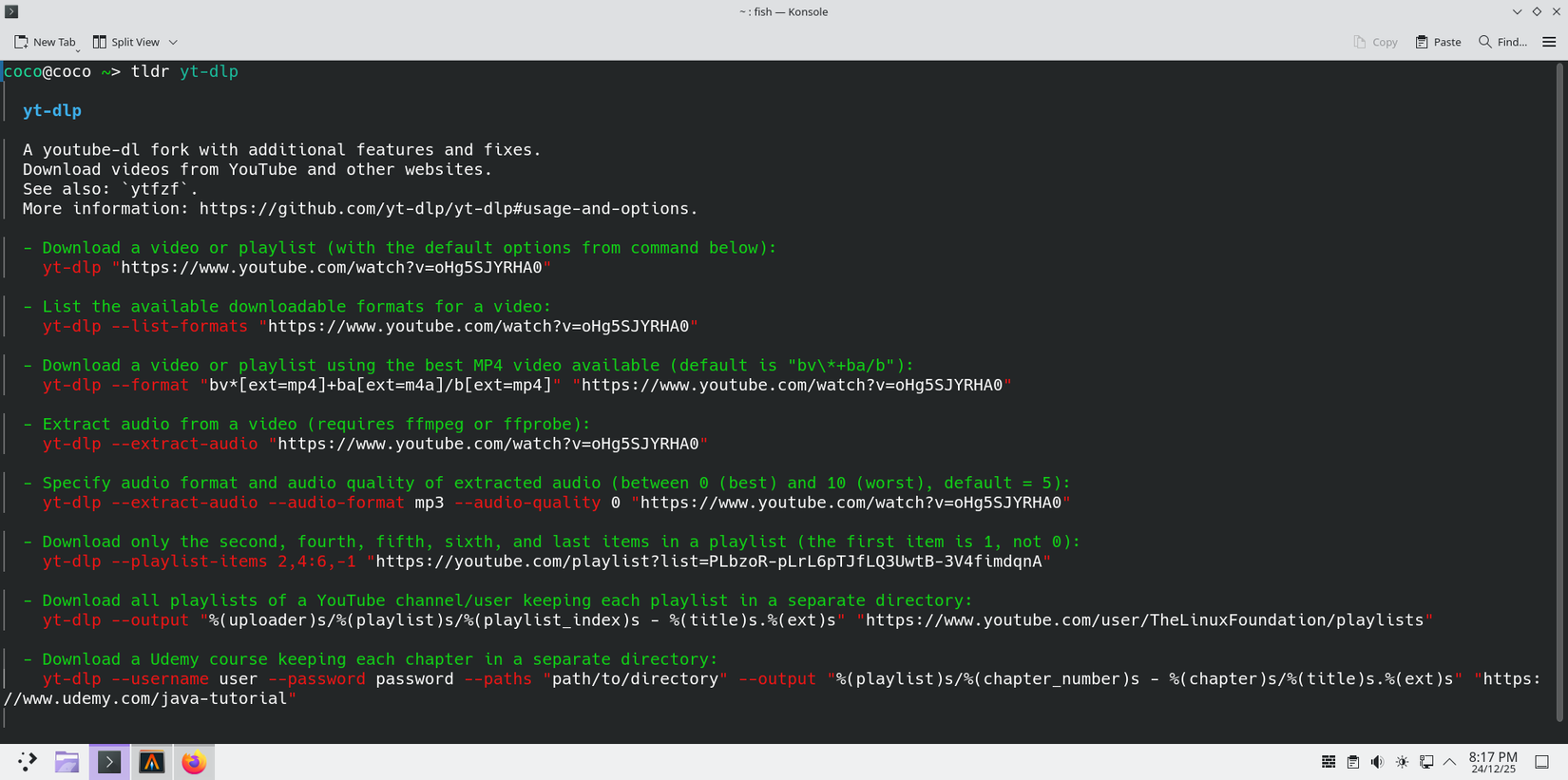
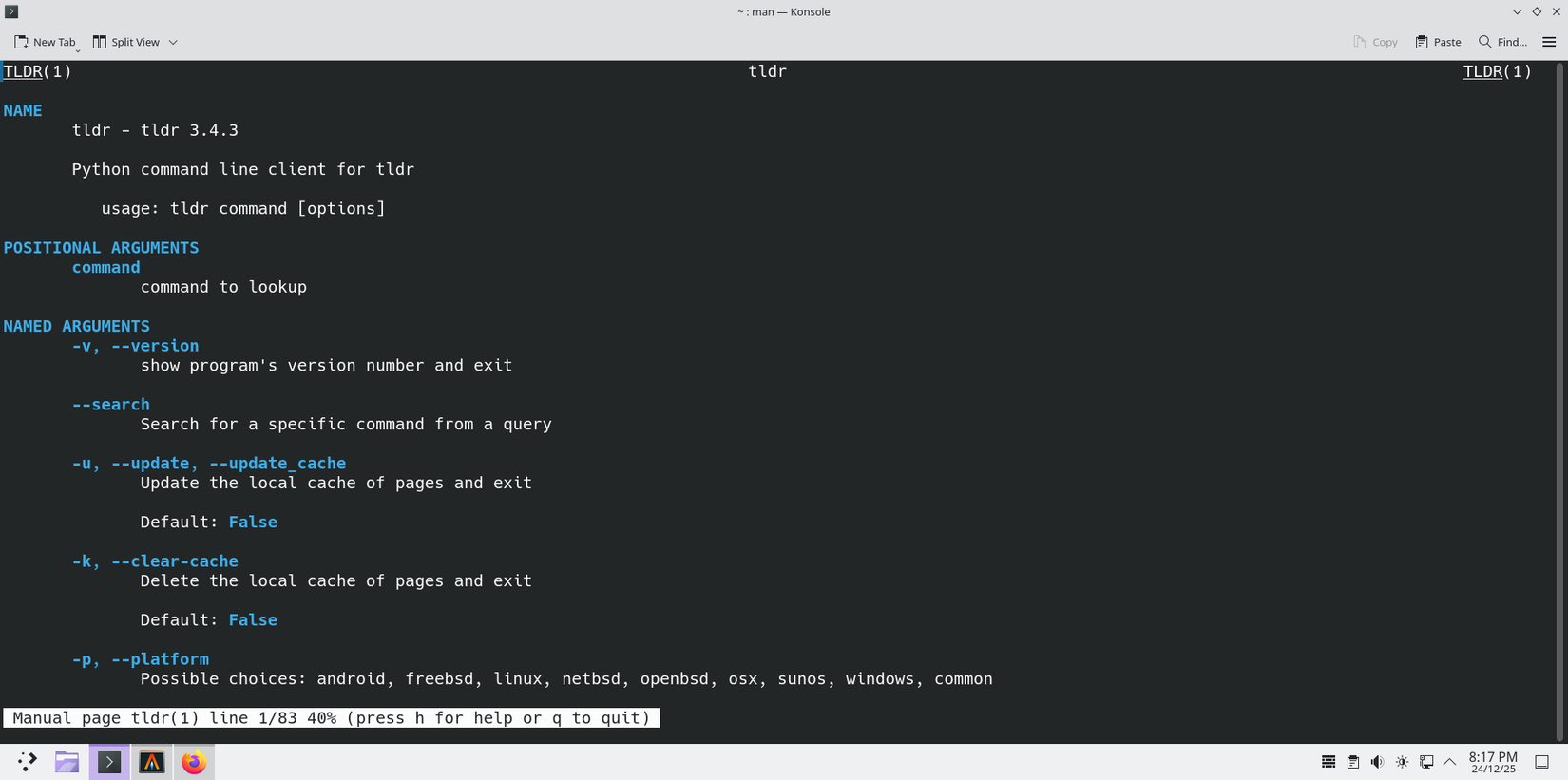
To get a list of all available commands and features, you can run a ‘man’ or ‘manual page’ command.
man yt-dlp
As you become more fluent with the Linux terminal, you’ll also begin to enjoy its simplicity, predictability, and power. These easy commands and shortcuts will help you get there fast.