
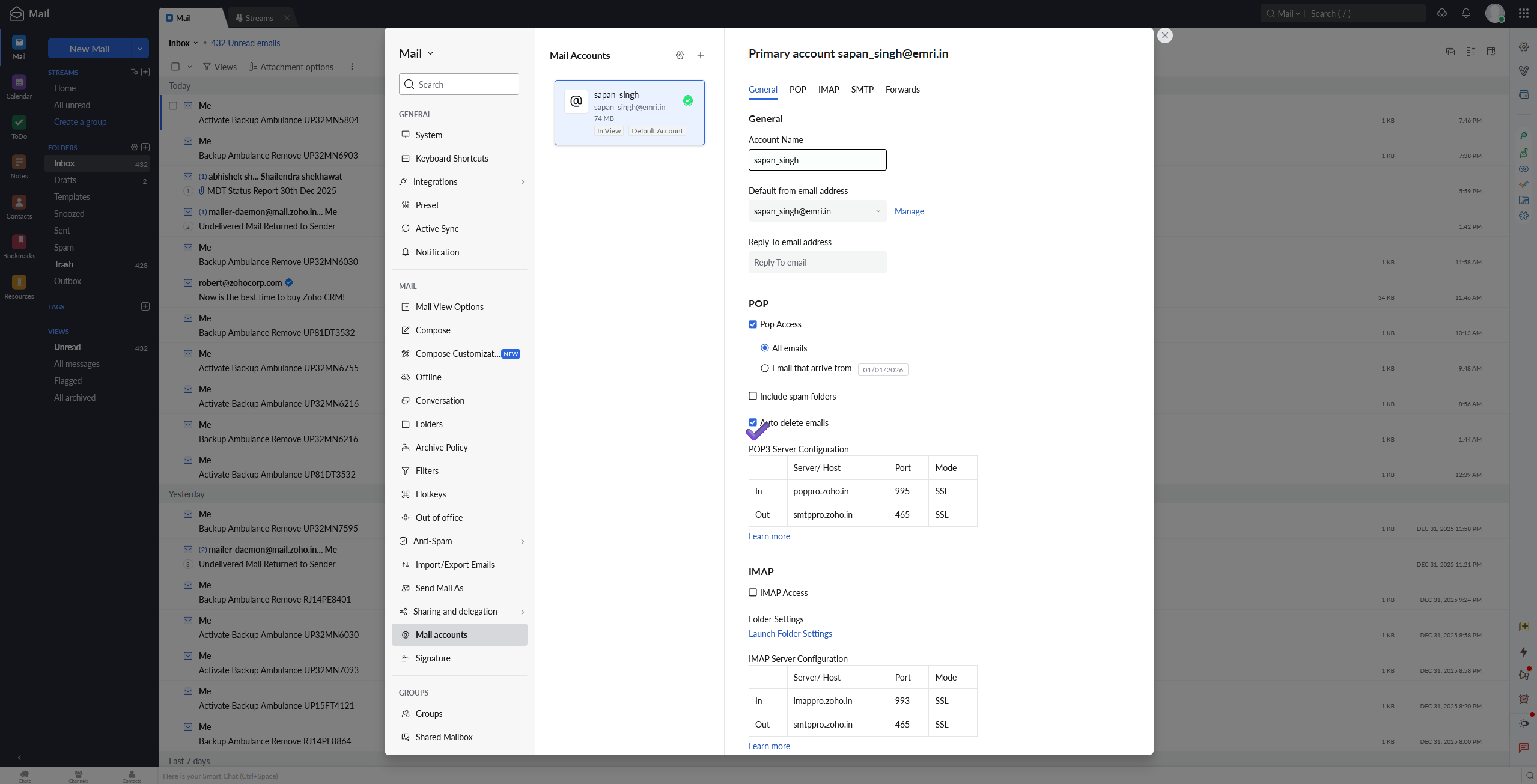
Zoho Mail offers powerful email management features for businesses and individuals. One of the most useful features is the POP auto delete mail option, which allows users to automatically delete emails from the source server after they are fetched into Zoho Mail.
In this WordPress SEO-friendly guide, you’ll learn what the Zoho Mail POP auto delete option is, why you should use it, and how to enable it step by step.
What Is POP in Zoho Mail?
POP (Post Office Protocol) allows Zoho Mail to fetch emails from another email account such as Gmail, Outlook, or a hosting-based email address.
Once configured, Zoho Mail:
- Downloads emails from the external server
- Stores them in your Zoho Mail inbox
- Optionally deletes emails from the original mailbox
This makes POP ideal for users who want to centralize all emails in Zoho Mail.
What Is the Zoho Mail POP Auto Delete Option?
The POP auto delete option in Zoho Mail automatically removes emails from the source email server after they are successfully retrieved.
How it works:
- Zoho Mail fetches emails via POP
- Emails appear in your Zoho Mail inbox
- The original emails are deleted from the source server
This helps avoid duplicate messages and reduces storage usage.
Benefits of Enabling Auto Delete Mail in Zoho Mail
Using the Zoho Mail POP auto delete setting offers several advantages:
✔ Prevent Duplicate Emails
Emails are stored only in Zoho Mail, avoiding repetition across platforms.
✔ Save Mailbox Storage
Deletes emails from the source server to free up space.
✔ Centralized Email Management
All incoming emails are managed from one Zoho Mail account.
✔ Improve Productivity
A clutter-free inbox helps you work faster and stay organized.
How to Enable Zoho Mail POP Auto Delete Option (Step-by-Step)
Follow these steps to enable auto delete mail after POP retrieval in Zoho Mail:
Step 1: Log in to Zoho Mail
Sign in to your Zoho Mail account using your credentials.
Step 2: Open Mail Settings
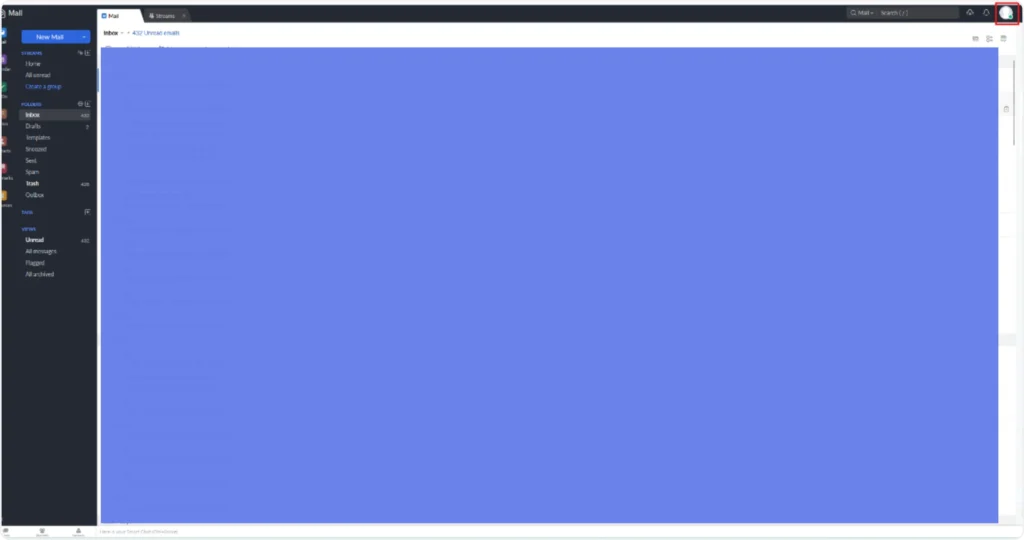
- Click the Settings (⚙️) icon
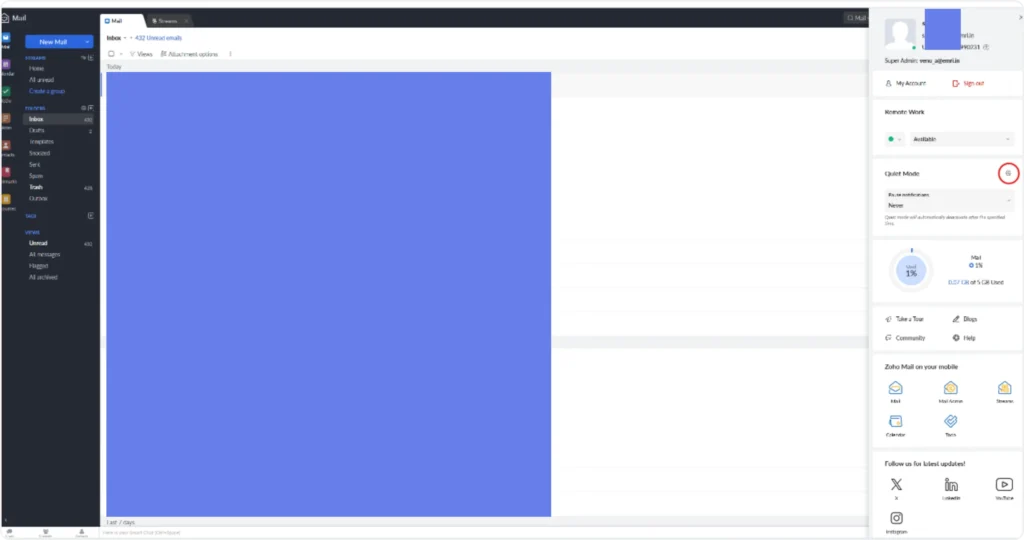
- Go to Mail Accounts
Step 3: Add or Edit POP Account
- Select your Zoho email address
- Click Add POP Account or Edit an existing one
Step 4: Enter POP Server Details
Provide the following information:
- Email address of the source account
- POP server name
- Port number
- Username and password
Step 5: Enable Auto Delete Option
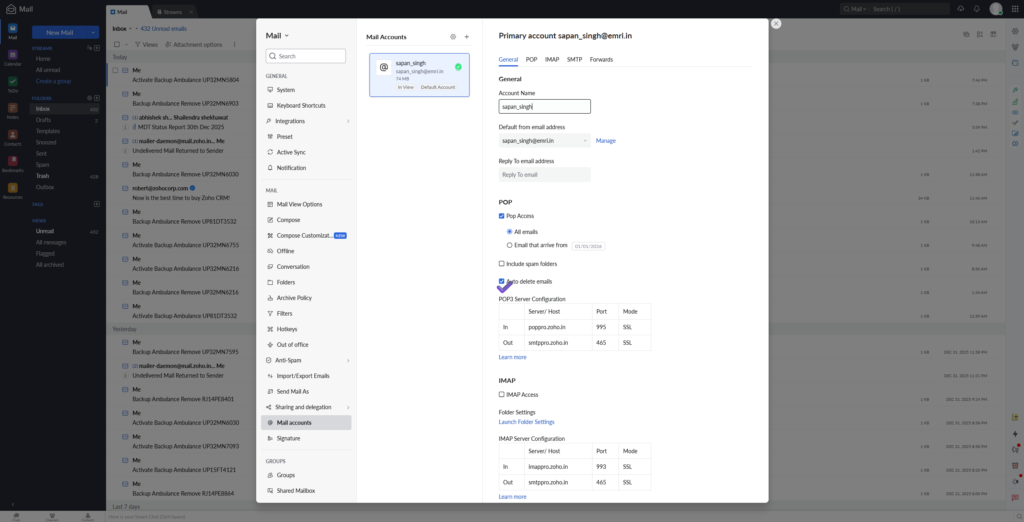
- Enable “Delete mails from server after retrieval”
Step 6: Save the Settings
Click Save to apply changes.
Zoho Mail will now automatically delete emails from the source server after fetching them.
Important Things to Know Before Enabling POP Auto Delete
Before enabling the auto delete option, keep these points in mind:
⚠ Emails Cannot Be Recovered
Once deleted from the source server, emails cannot be restored.
⚠ Test POP Fetching First
Ensure POP retrieval works correctly before enabling deletion.
⚠ Backup Critical Emails
Always back up important messages from the source account.
Zoho Mail POP vs IMAP: Which One Should You Use?
| Feature | POP | IMAP |
|---|---|---|
| Email Sync | One-way | Two-way |
| Auto Delete Option | Yes | No |
| Storage Control | High | Limited |
| Best Use Case | Email migration | Multi-device access |
If you want to move emails permanently into Zoho Mail, POP with auto delete is the best option.
Common Zoho Mail POP Issues and Fixes
POP Emails Not Fetching
- Verify POP server address and port
- Confirm login credentials
- Ensure POP access is enabled on the source account
Emails Missing After Auto Delete
- Check Spam or All Mail folders
- Review POP fetch frequency settings
SEO Keywords to Target
- Zoho Mail POP auto delete option
- Enable auto delete mail in Zoho Mail
- Zoho Mail POP settings
- Delete emails after POP retrieval Zoho
- Zoho Mail email migration
Final Thoughts
The Zoho Mail POP auto delete mail option is a smart solution for users who want full control over their email flow. By enabling this feature, you can reduce inbox clutter, save storage, and manage all emails directly in Zoho Mail.
If you are migrating emails or using Zoho Mail as your primary inbox, this feature can significantly improve efficiency.







Yo, gave bet148 a run. Nothing earth-shattering, but solid enough. If you’re looking for something new, give bet148 a shot.