The bat program describes itself as “a cat clone with wings,” which is a fun analogy, but a slightly misleading one. bat is a tool with two main purposes: highlighting syntax and marking git diffs.
To understand exactly how to best use bat, these examples will show you how the command works and what its various options allow you to do.
bat Does Syntax Highlighting by Default
To illustrate bat’s core function, simply run it against a source code file in the language of your choice, e.g.:
bat tile.js
For a short file, bat will send output and return you to your prompt:
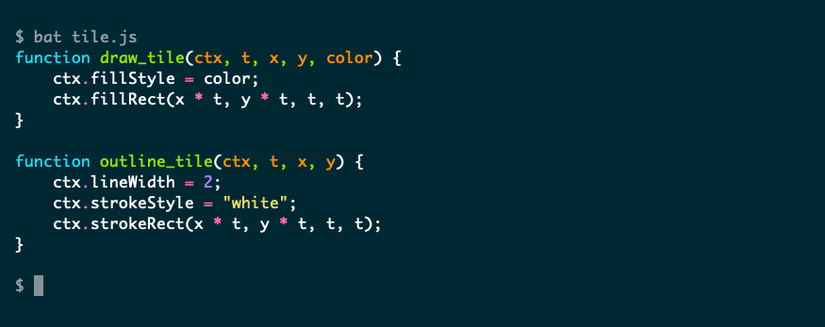
The main thing that bat does in this case is to add syntax highlighting to your file using ANSI colors. It can do this for many different languages, covering everything from C to HTML and Markdown:
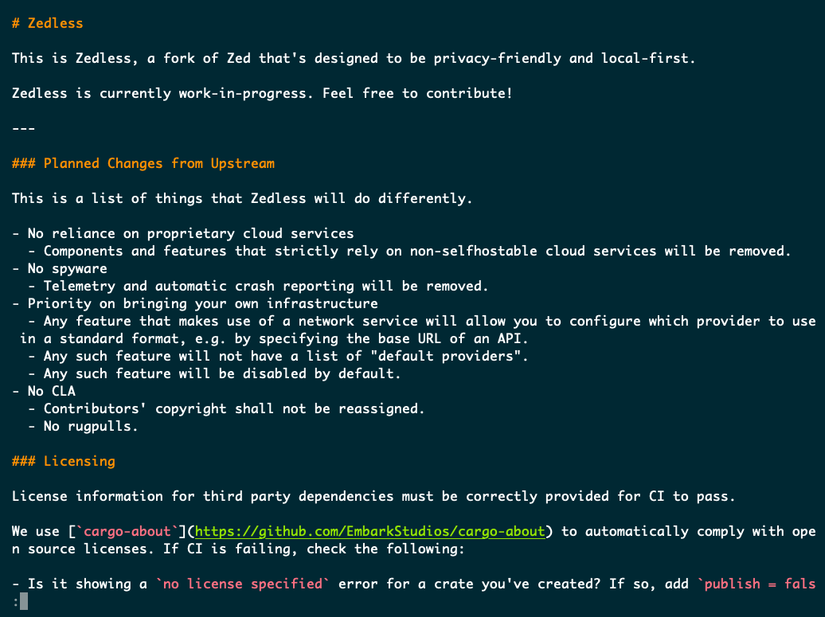
To list the full set of language syntaxes that bat supports, use the –list-languages option.
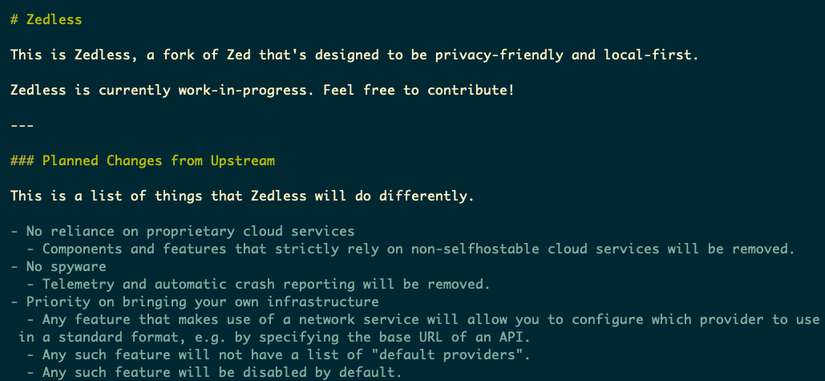
You can use the –theme option to change the specific colors bat uses. For example, here’s the start of the previous file highlighted using the gruvbox-dark theme:
Although bat describes itself as a “cat clone,” it isn’t really. You can use the cat command in many ways, but its original intent was to combine (concatenate) files. cat remains the best tool for that purpose, but bat improves its use as a file viewer.
bat Uses a Pager Intelligently
If a file is too long to fit in your terminal, bat will use a pager to display an interactive version. This will work exactly in the same way as the pager you use to view man pages, provided it’s the same pager. By default, bat will use less, but you have a couple of options to use an alternative:
- Change the PAGER variable or use BAT_PAGER if you want bat to use a different pager from other software.
- Use the –pager option to specify a command (or path to a program). You can do this on the command line or in bat’s configuration file.
You might find it confusing or distracting to have bat sometimes use a pager, and sometimes not. If so, you can use the –paging option to alter this behavior:
bat --paging=always README.md
There are several different ways you can set up your pager using bat and the –paging and –pager options. See the bat docs (man bat) for more details.
bat Also Numbers Lines by Default
By default, bat also displays line numbers alongside your file. I turned these off in the previous screenshots to keep them simple; here’s an example of the real default behavior:
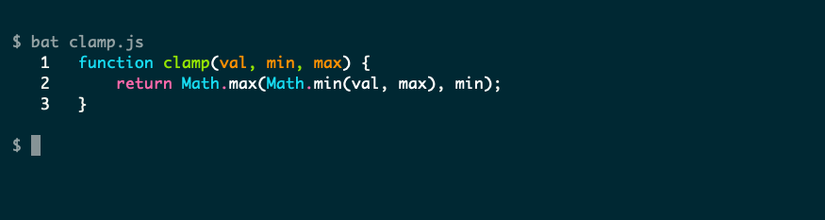
Line numbers are useful to track your location within a file. The less pager doesn’t show this information by default, although alternatives like most do. Numbering lines is particularly useful if you’re inspecting source code and trying to track down a bug on a specific line. You can use the -p option to turn off line numbers or the -n option to show line numbers and nothing else.
bat Can Highlight Lines or Ranges
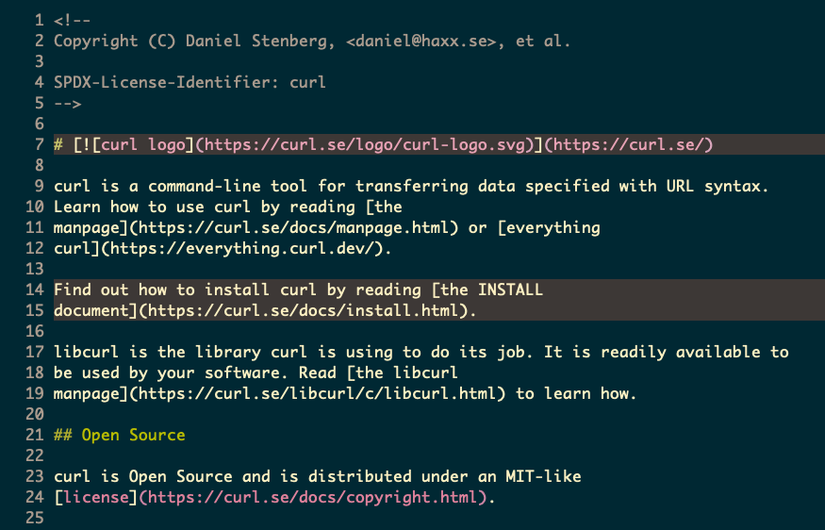
bat’s line numbering is even more effective when you combine it with line highlighting, which you can use on just one line or on a set of ranges. The –highlight-line option has a few variations; here’s an example:
bat --highlight-line=7 --highlight-line=14:15 README.md
This will highlight line 7 and lines 14-15 using an alternative background color:
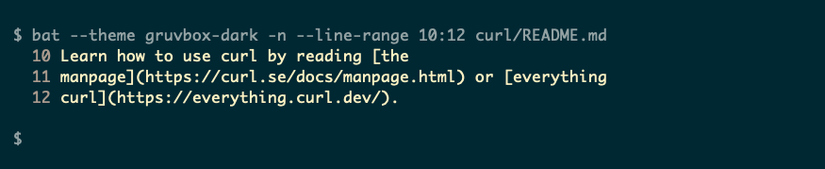
A similar option, –line-range, lets you only display certain lines or ranges:
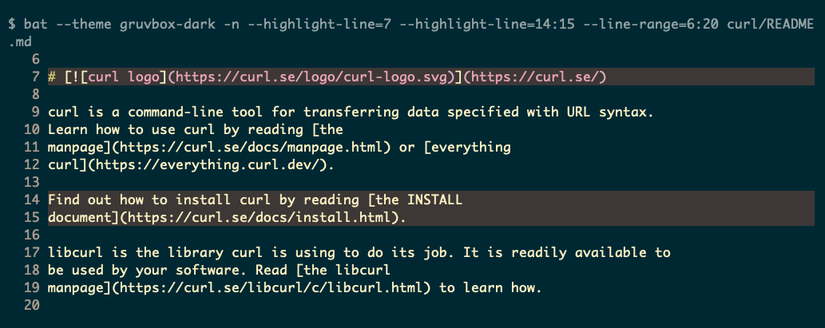
Of course, you can combine the two to display part of a file and highlight specific lines at the same time:
bat Works Well With Git
If you’re using bat to view source code, you’ll be pleased to know that it has great support for git. bat will show changes to a file if it detects that it’s in a git repository:
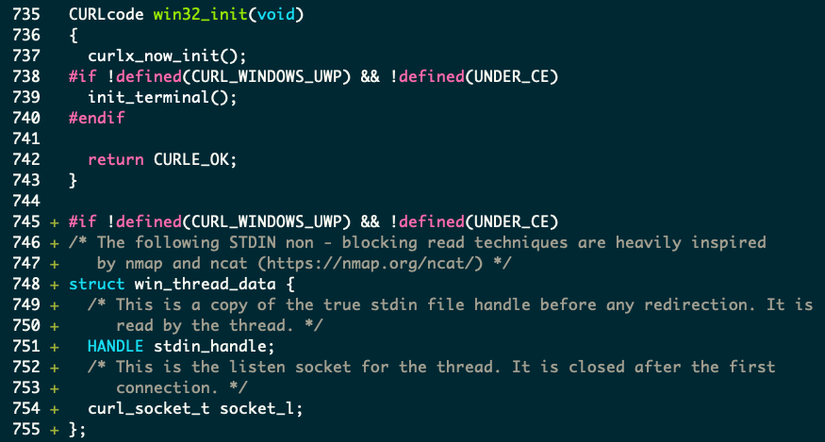
bat will show familiar symbols in the left-hand margin of each changed line to indicate if it’s new (+), been removed (-), or been altered (~). You can use the –diff (-d) flag to tell bat to only show lines with changes, plus some context lines around them. This is a great feature for reviewing code changes or getting yourself back up to speed on a project you’re returning to.
bat Behaves Sensibly if It’s in a Pipeline
We’ve already seen how bat uses some common sense to decide whether to use a pager, but the tool has some other intelligence features. In particular, the most useful is its ability to detect what kind of output is most appropriate.
bat does this by checking whether its output is being sent to a non-interactive terminal: if it’s piped into another process or into a file, for example. In those cases, you probably won’t want bat’s syntax highlighting, so it will suppress the special color codes it usually outputs. In this mode, it essentially acts like cat, turning off all decorations including line numbers and range highlights.
You can still force bat to produce formatted output, even if it’s in a pipeline. This is useful if you know the command you’re piping to can handle ANSI color codes, like the most pager, for example:
bat -f README.md | most
The –force-colorization (-f) option tells bat to keep all colorization and decorations, so it’s the opposite of –plain (-p).
bat Works Nicely With man Too
Because you can configure the pager that man uses to display help on Linux commands, you can also set it to use bat for nicer output:
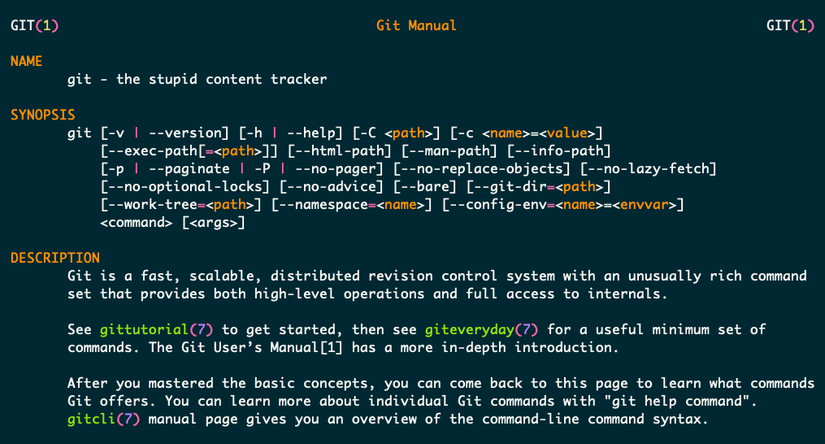
To do so, run man and set MANPAGER like this:
MANPAGER="sh -c 'col -bx | bat -l man -p'" man ls
This command could use some explaining because it does quite a lot. First, it sets the MANPAGER variable, then runs “man ls” at the very end. This syntax (“NAME=VALUE command”) is a convenient way of setting an environment variable for the specific command that follows.
The value of MANPAGER is a call to sh (your default shell) with the -c option to run a command. In turn, that command runs two programs, col and bat, piping the output from the first to the input of the second. The col program helps to clean up certain formatting characters, and bat is run with the “-l man” option to use man syntax for colorization. The -p uses plain style, which suits man pages.
You can set the MANPAGER variable permanently in a user config file to avoid having to learn and type this full command!
bat Has Some Really Useful Configuration Options
By now, you might have noticed that bat is highly configurable. Some of its options are informative, like –list-languages. You can use –config-file to print the location of your bat config file, for example.
If you’re looking for a different color scheme (we all have our favorites), check out the –list-themes options. Interestingly, this output uses decorations and colorization, and you can turn them off using the standard options:
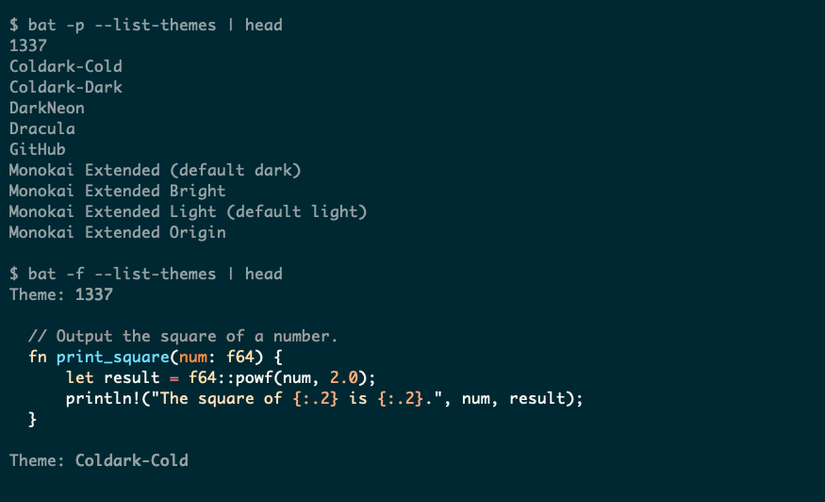
The tool also supports a few simple options to control specific formatting details, so you can control its output precisely. Use “–tabs n” to set tab width in spaces, –chop-long-lines to truncate all lines longer than the screen width, and –squeeze-blank to compress runs of blank lines to a single line.
bat is one of a growing number of Linux command-line tools written in Rust. This ecosystem is encouraging a generation of visually rich, interactive TUI apps that are taking on established commands, and bat is a fine addition to your Linux toolsuite.