Your computer stores the time in a hardware clock on its motherboard. The clock keeps track of time, even when the computer is off. By default, Windows assumes the time is stored in local time, while Linux assumes the time is stored in UTC time and applies an offset. This leads to one of your operating systems showing the wrong time in a dual boot situation.
To fix this, you have two options: Make Linux use local time, or make Windows use UTC time. Don’t follow both steps of instructions or they still won’t be speaking the same language! We recommend you make Linux use local time, if possible.
Option 1: Make Linux Use Local Time
Making Linux use local time the same way Windows does is probably the best option. Windows does have a registry setting that forces it to store the time as UTC, but it reportedly isn’t well supported and can cause problems with some third-party applications that always assume the hardware clock is in local time. It’s also incompatible with Windows’ own Internet time-syncing service.
The steps to make your Linux system use local time can vary from Linux distribution to Linux distribution. However, on any Linux distribution with systemd, you can use the timedatectl command to make this change. This will work on modern versions of Ubuntu, Fedora, Red Hat, Debian, Mint, and other Linux distributions that use systemd.
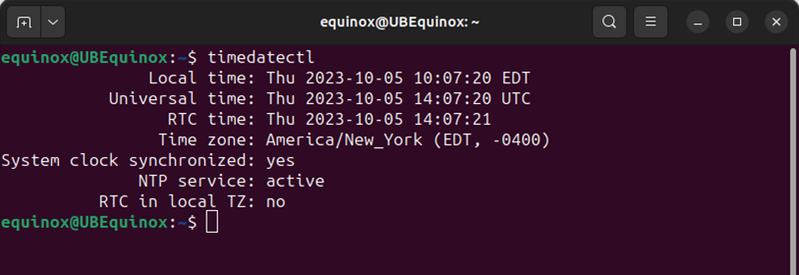
To make this change, first open a Terminal window on your Linux system. Run the following command to put the real time clock on the motherboard into local time. Linux will store the time in local time, just like Windows does.
timedatectl set-local-rtc 1 --adjust-system-clock
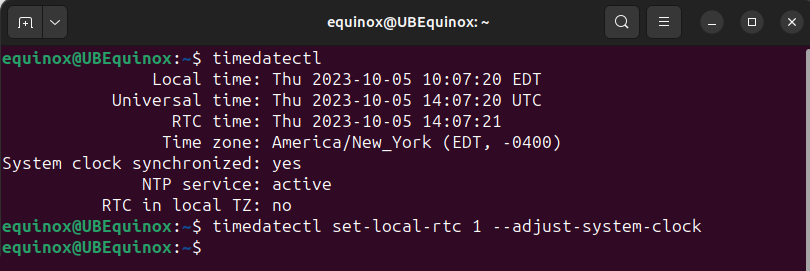
You will not get any feedback after you execute the command. To check your current settings, run:
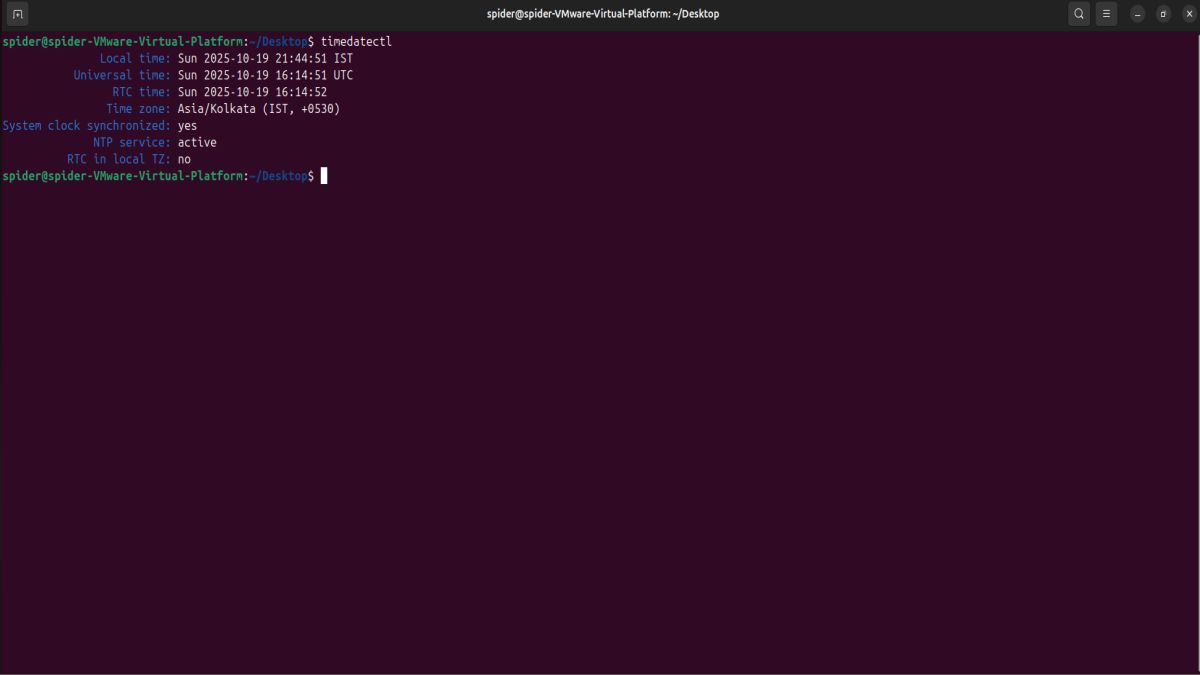
timedatectl
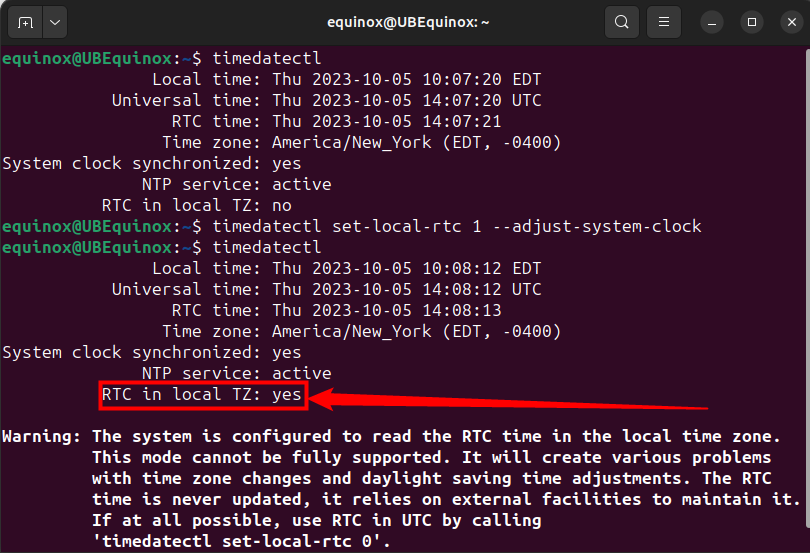
If you see “RTC in local TZ: yes”, Linux is set to use the local time zone instead of UTC. The command warns you that this mode is not fully supported and can cause some problems when changing between time zones and with daylight savings time. However, this mode is probably better supported than the UTC option in Windows. If you dual-boot with Windows, Windows will handle daylight savings time for you.
If you ever want to undo this change, run the following command:
timedatectl set-local-rtc 0 --adjust-system-clock
Option 2: Make Windows Use UTC Time
Making Windows use UTC time like Linux is probably not the best option. You can edit the registry to make Windows use UTC time, but this could potentially cause more problems than just making Linux use local time.
Disable Automatic Time Setting
If you do want to do this, you’ll first want to disable the Internet time updating feature on Windows. This ensures Windows won’t set the clock incorrectly when trying to sync the current time from the Internet.
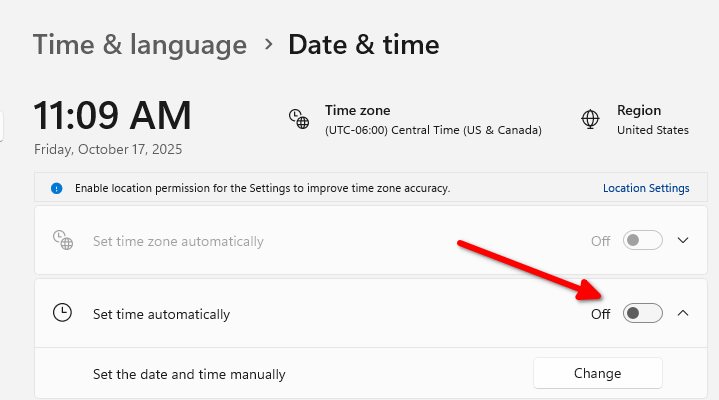
On Windows 10, head to Settings > Time & language and disable “Set time automatically”. On Windows 11, you need to go to Settings > Time & language > Date & time, then look for and disable “Set time automatically.”
Make Windows Use UTC Time By Editing the Registry
You will now need to add the appropriate value to the Windows registry. Here’s our standard warning: The Registry Editor is a powerful tool and misusing it can render your system unstable or even inoperable. This is a pretty easy hack and you shouldn’t have any problems as long as you follow the instructions. That said, if you’ve never worked with it before, consider reading about how to use the Registry Editor before you get started. And definitely back up the Registry (and back up your computer!) before making changes.
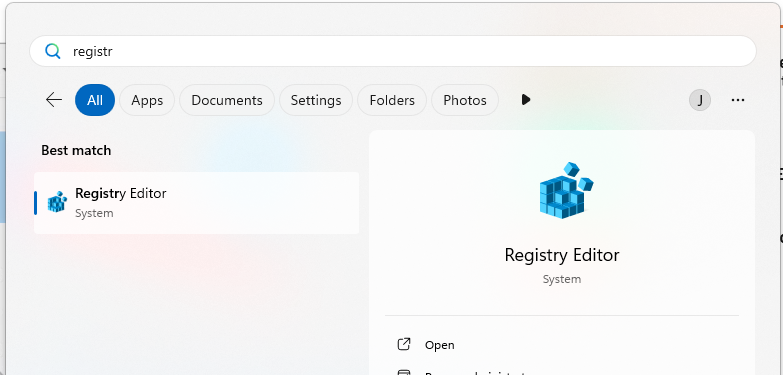
First, open the Registry Editor by clicking Start, typing “regedit”, and pressing Enter. Agree to the security prompt that appears.
Navigate to the following key in the left pane of the registry editor:
HKEY_LOCAL_MACHINE\System\CurrentControlSet\Control\TimeZoneInformation
On Windows 10 and Windows 11, you can copy and paste the above line into the address box. However, this hack will work on older versions of Windows as well.
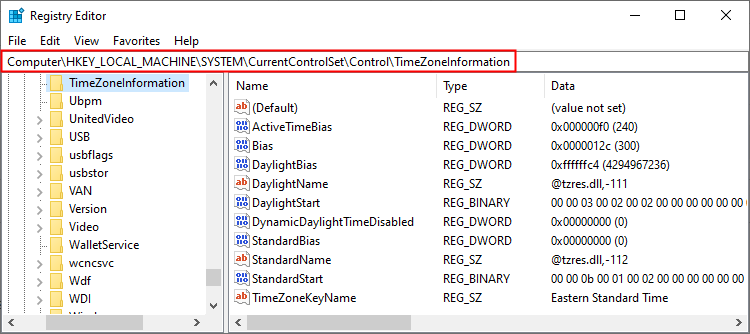
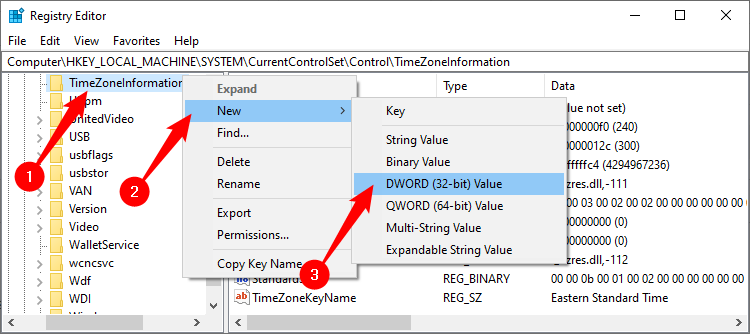
Right-click the “TimeZoneInformation” key and select New > DWORD (32-bit) Value.
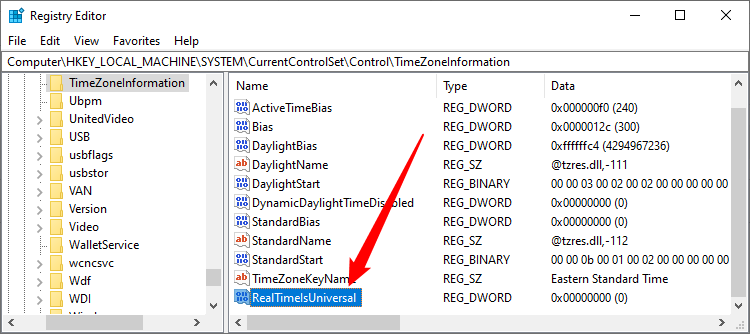
Name your new value RealTimeIsUniversal.
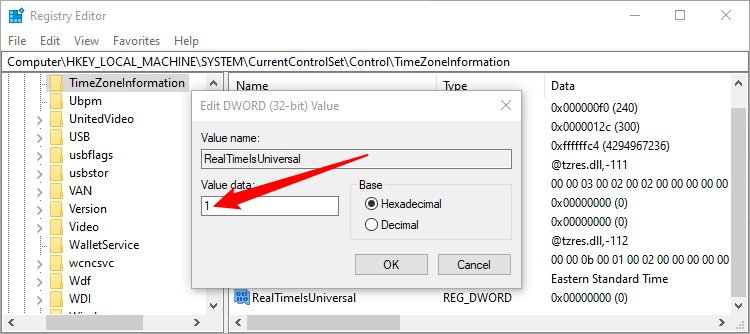
Double-click the RealTimeIsUniversal value you just created, set is value data to 1, and click “OK”.
You’re now done, and you can close the Registry Editor. Windows will store the time in UTC, just like Linux does.
If you ever want to undo this change, return to this location in the registry, right-click the RealTimeIsUniversal value you added, and delete it from your registry.
Optional: Download Our One-Click Registry Hack to Change to UTC
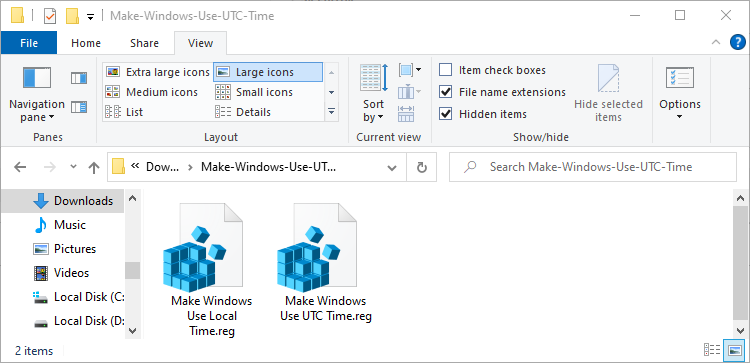
If you don’t want to edit the registry yourself, you can use our downloadable registry hack. We created one hack that makes Windows use UTC time, and one that restores it to local time. Both are included in the following ZIP file. Just download the file, double-click the hack you want to use, and agree to add the information to your registry.
The above hacks do the same thing we described above. The Make Windows Use UTC Time hack creates the “RealTimeIsUniversal” entry with a value of “1”, while the Make Windows Use Local Time hack deletes the “RealTimeIsUniversal” entry.
If you ever want to see what this or any other REG file does, right-click it and select “Edit” to view the file in Notepad. You can easily make your own registry hacks, which just consist of a list of registry entries to add, edit, and remove in a properly formatted
What About Dual-Booting Windows on a Mac?
Although Apple’s macOS uses UTC time like Linux does, you shouldn’t have to do anything special when running Windows in Boot Camp on a Mac. Apple’s Boot Camp drivers handle everything. (Hackintosh dual-booters are another story, though, and will have to try using the Windows registry tweak above.)
Why Does Windows Use Local Time instead of UTC?
In short, it was to preserve backwards compatibility with Windows 3.1 systems and to prevent people from getting confused when they set the time in the computer’s BIOS. Of course, PC manufacturers chose local time to be compatible with Windows and Windows chose local time to be compatible with the decision PC manufacturers chose, so the cycle became self-reinforcing.
There’s currently no standard for labeling whether a time is stored as UTC or local time in BIOS or UEFI firmware, which would probably be the most logical solution. But it would require some work, and most people will never even notice different operating systems use different time formats — except in dual-boot configurations.