Windows 10 has reached end of life, which means it won’t receive any more major feature updates, and even security updates will only be available to users that make a special effort to opt in. However, just because we’re leaving Windows 10 behind doesn’t mean the things it gave us are getting left behind. Here are the five best things Windows 10 introduced to the Windows PC world.
DirectX 12
DirectX 12 was released alongside Windows 10 and brought with it double-digit performance improvements over DirectX 11, allowed developers to more effectively exploit the parallelism of CPUs of the era, and squeeze more out of the current generation of GPUs than was previously possible.
It isn’t something most of us see or deal with directly day in and day out, but the last decade of gaming would not have been the same without it.
The Game Bar
Gamers have been obsessed with sharing clips of their triumphs and failures for as long as the internet has been a thing, which is why so many old videos have an “unregistered hypercam” watermark imposed on them.
With Windows 10, Microsoft introduced one of the best new features for Windows: the Game Bar.
The Game Bar does most of what you could do with third-party capture programs, like Hypercam, OBS, or even NVIDIA’s ShdowPlay, do. You can capture audio, screenshots, or even video.
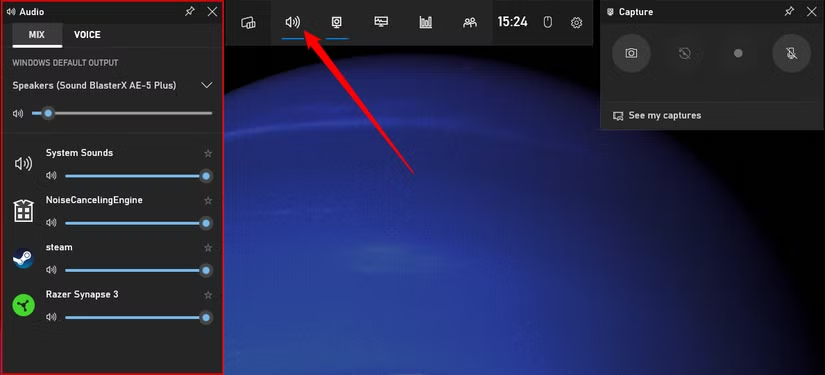
The best part is that it is fully integrated into the operating system, so there is no need to fuss with installing anything—it comes pre-packaged. Additionally, the implementation is good. Many recording programs (especially around the time Windows 10 was released) had pretty demanding hardware overheads, which hurt your gaming performance.
The Game Bar suffers from no such problem. Whether I was using my now-old Surface laptop or my gaming PC, Game Bar doesn’t impact my performance.
The Game Bar has been slightly overshadowed by options like OBS and NVIDIA’s ShadowPlay because the original UI was a bit clunky, but subsequent updates in Windows 10 (and continued updates in Windows 11) have made it an excellent option for anyone that wants to quickly grab a video snippet or take a screenshot of what they’re doing.
Windows Subsystem for Linux (WSL)

The Windows Subsystem for Linux, usually just called WSL, would probably be more intuitively named the “Linux Subsystem for Windows.” WSL (technically WSL2) provides a high-performance Linux virtual machine that can run on your Windows PC.
If you’re a developer that needs to be able to quickly flit between the two systems, or if you’re just a Linux enthusiast that likes some of the command-line options and tools in Linux more than their Windows counterparts, WSL has been a game changer.
Development for WSL mostly shifted to Windows 11 a while ago now, but it was originally Windows 10 that introduced this small but wonderfully useful addition.
Virtual Desktops
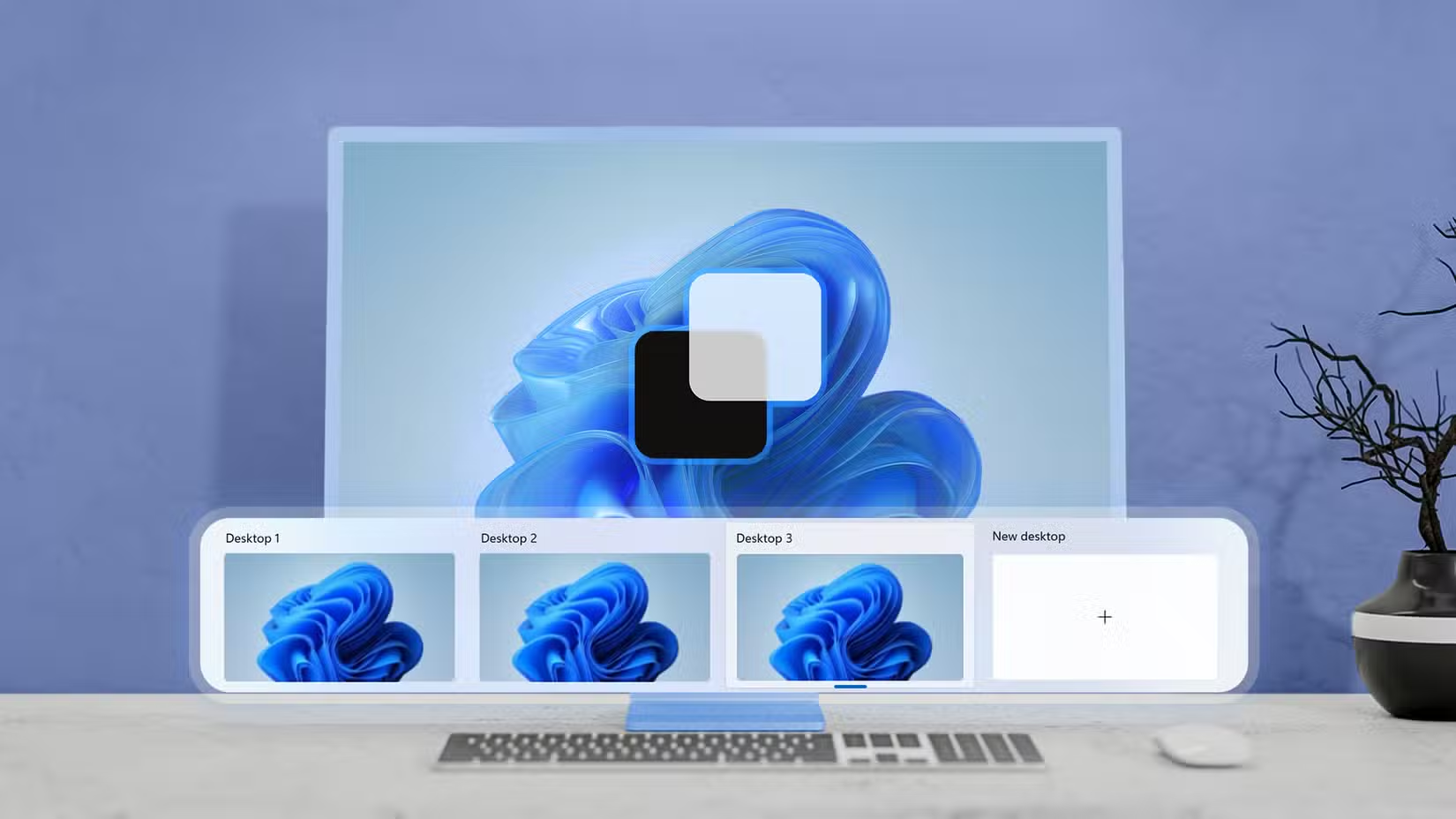
Virtual desktops are one of my favorite features, since they allow you to get most of the utility of multiple screens without forking over the cash for additional monitors, using up the desk real estate, or adding to the visual clutter.
Linux and macOS users had enjoyed the benefits of virtual desktops for years—since the late 90s and 2007 respectively—while Windows users were stuck using third-party solutions of varying quality. However, Microsoft finally added native virtual desktop support with the release of Windows 10—a feature I’ve used almost daily.
Since then, Microsoft has continued to rework and improve the feature. The snap layouts added in Windows 11 really make virtual desktops shine, especially if you combine them with tools like FancyZones and Workspaces (which are PowerToys tools). My daily “getting ready to go” routine has been cut down from about 10 minutes to the time it takes to press a few keys.
Windows Security
Sometimes the best and most important updates to an operating system are ones that barely get noticed, and nowhere is that more evident than Windows Security.
Windows Security rolls together antivirus, anti-rootkit, real-time protection, and more. Prior to Windows 10, Microsoft’s attempts at implementing a security solution for Windows were a bit patchwork, and somewhat incomplete compared to competing third-party options.
Now, however, Windows Security happily holds its own against even premium antivirus suites and is all the security the average home user needs to keep their PC safe. Independent tests have consistently found that Microsoft Defender Antivirus (the antivirus packaged in Windows Security) is as good as paid third-party options. It is also usually less demanding on your system’s resources.
It is probably the most important improvement for Windows users that came with Windows 10, and we’ve become so used to the perk that we’ve forgotten how great it is.