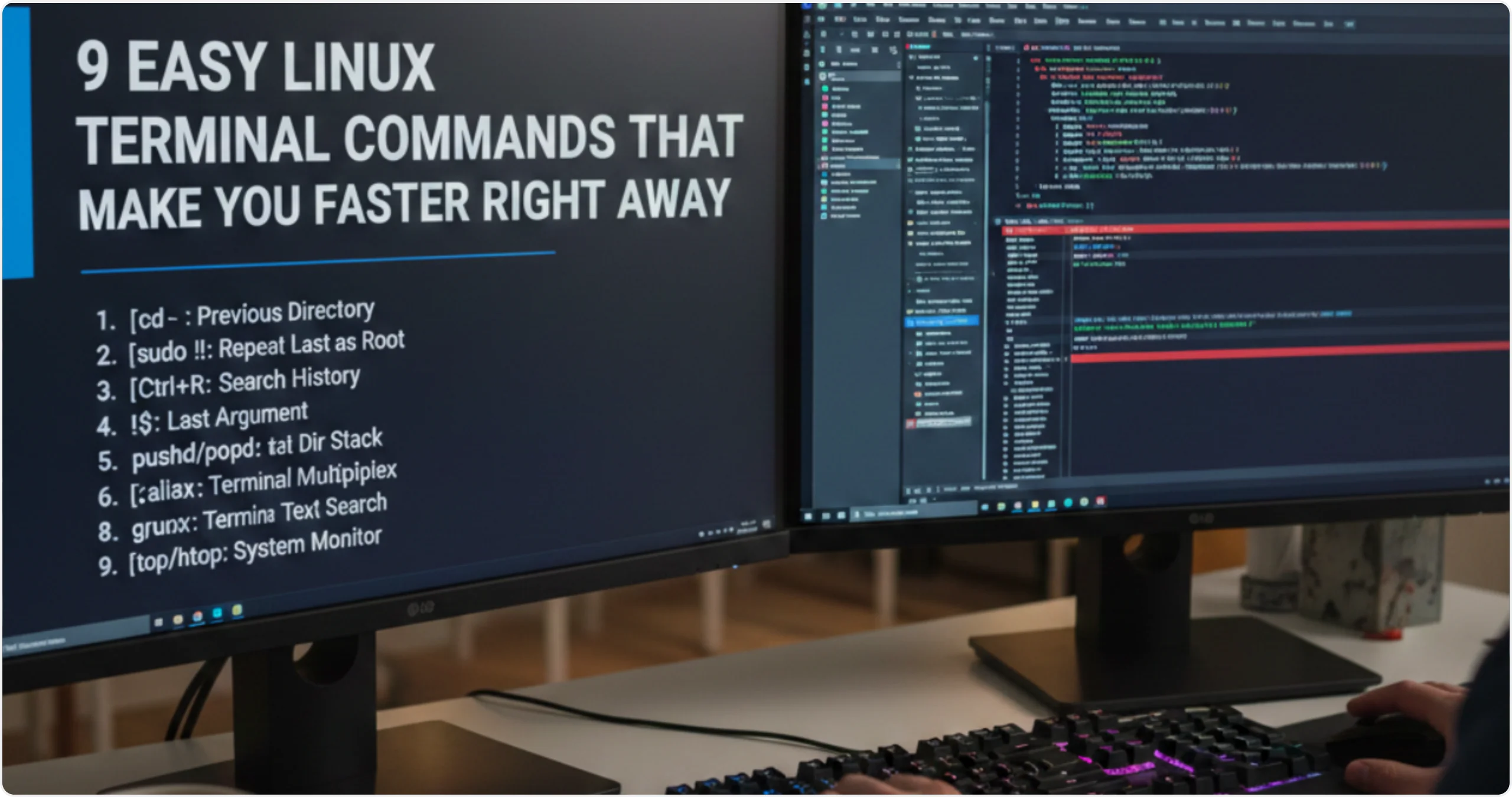
The Linux terminal is a powerful tool that lets you interact with your system directly. While it may look intimidating at first, learning a few basic commands can make you more efficient and unlock the full power of Linux.
This guide is perfect for beginners and includes clear explanations, examples, and easy-to-read charts to help you get started.
What Is the Linux Terminal?
The terminal (also called the command line, console, or shell) is a text-based interface where you type commands to control your Linux system.
Most Linux systems use Bash (Bourne Again SHell) as the default shell, but others exist too (like Zsh, Fish, etc.).
How to Open the Terminal
Depending on your Linux distro or desktop environment, you can open the terminal in one of these ways:
| Desktop Environment | How to Open Terminal |
|---|---|
| Ubuntu (GNOME) | Press Ctrl + Alt + T or search “Terminal” in the menu |
| Linux Mint (Cinnamon) | Ctrl + Alt + T or search for Terminal |
| KDE Plasma | Alt + Space then type “Konsole” |
| XFCE | Menu > Accessories > Terminal Emulator |
📚 Basic Linux Terminal Commands
Here are the essential commands every Linux beginner should know:
📁 1. Navigating the File System
| Command | Description | Example |
|---|---|---|
pwd | Print current directory | /home/username |
ls | List files in directory | ls /etc |
cd [directory] | Change directory | cd Documents |
cd .. | Go back one directory | |
cd ~ | Go to home directory |
📂 2. Managing Files and Folders
| Command | Description | Example |
|---|---|---|
touch [filename] | Create a new empty file | touch notes.txt |
mkdir [foldername] | Create a new folder | mkdir projects |
cp [source] [destination] | Copy file or folder | cp file.txt backup/ |
mv [old] [new] | Move or rename files/folders | mv oldname.txt newname.txt |
rm [file] | Delete file | rm temp.txt |
rm -r [folder] | Delete folder and contents | rm -r old_folder |
📝 3. Viewing and Editing Files
| Command | Description | Example |
|---|---|---|
cat [file] | Show file content | cat readme.txt |
less [file] | View long files one screen at a time | less /var/log/syslog |
nano [file] | Simple text editor in terminal | nano notes.txt |
vim [file] | Advanced text editor (for pros) | vim config.cfg |
⚙️ 4. System Information and Management
| Command | Description | Example |
|---|---|---|
whoami | Show current user | |
uname -a | Show system info | |
top | Show running processes | |
df -h | Show disk space usage | |
free -h | Show RAM usage | |
uptime | Show how long system has been running |
🧪 5. Package Management Basics
Depending on your Linux distro, use the appropriate command to install, update, or remove software:
| Action | Ubuntu / Debian (APT) | Fedora (DNF) | RHEL/CentOS (YUM) |
|---|---|---|---|
| Install | sudo apt install | sudo dnf install | sudo yum install |
| Remove | sudo apt remove | sudo dnf remove | sudo yum remove |
| Update | sudo apt update | sudo dnf check-update | sudo yum check-update |
🔐 Running Commands as Root (Admin Privileges)
Some commands require administrator (root) access. Use sudo before the command:
sudo apt update
You’ll be asked to enter your user password (not root password).
🛠️ Useful Keyboard Shortcuts in Terminal
| Shortcut | What It Does |
|---|---|
Ctrl + C | Stop running command |
Ctrl + D | Log out / close terminal |
Ctrl + L | Clear the terminal screen |
Tab | Auto-complete file or command name |
Up / Down Arrows | Scroll through command history |
🧠 Bonus: Understanding the Linux Filesystem
Linux uses a hierarchical directory structure. Here’s a simple overview:
| Directory | Purpose |
|---|---|
/ | Root directory (everything starts here) |
/home | User folders |
/etc | System configuration files |
/bin | Essential system binaries |
/var | Variable data (logs, spool files) |
/tmp | Temporary files |
🧪 Practice Challenge for Beginners
Try these steps to practice what you’ve learned:
cd ~
mkdir terminal-practice
cd terminal-practice
touch file1.txt
mkdir subfolder
cp file1.txt subfolder/
ls -l
rm -r subfolder
✅ Final Tips for Terminal Success
- Don’t be afraid to experiment — Linux won’t break with basic commands.
- Use
man [command]to learn more (e.g.,man ls). - Practice makes perfect. The more you use it, the more confident you’ll become.
📌 Quick Reference Chart: Common Commands
| Task | Command Example |
|---|---|
| List files | ls |
| Go to directory | cd Documents |
| Create file/folder | touch file.txt, mkdir folder |
| Delete file/folder | rm file.txt, rm -r folder |
| Show current location | pwd |
| View file content | cat file.txt, less file.txt |
| Check disk/RAM usage | df -h, free -h |
| Install package | sudo apt install name |
💬 Conclusion
The terminal may look intimidating at first, but once you learn the basics, you’ll start to appreciate its power and flexibility. Whether you’re managing files, installing software, or monitoring your system, the command line is an essential part of the Linux experience.