
Introduction
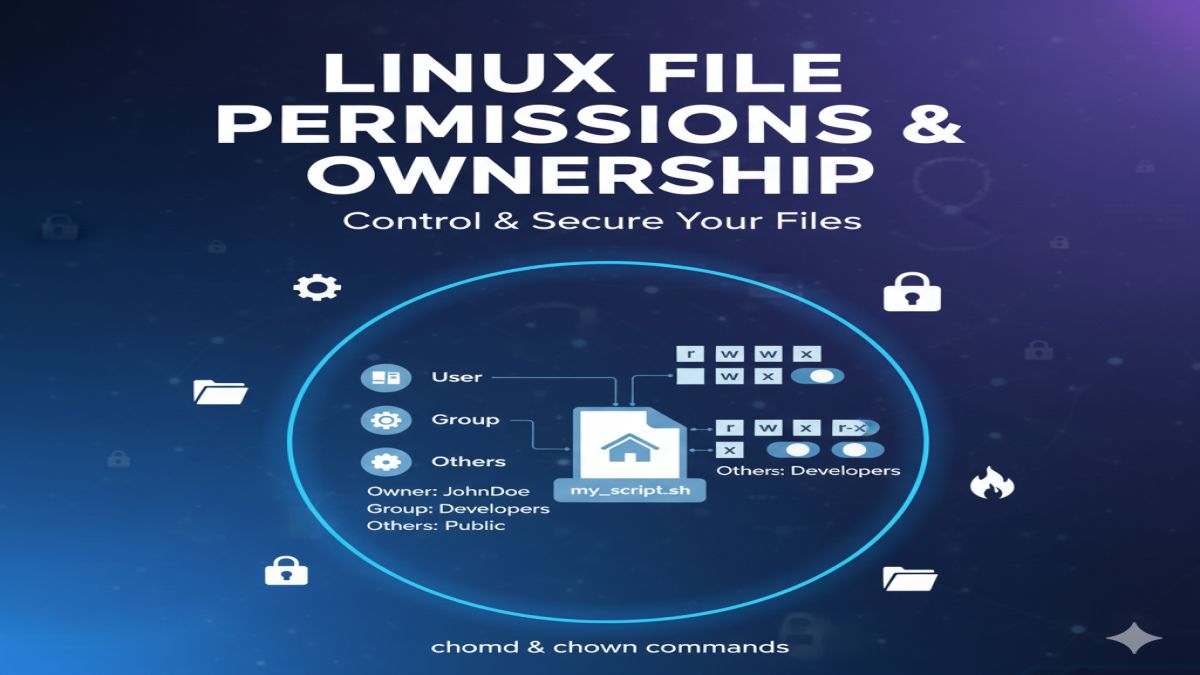
Linux File Permissions In Linux file permissions and ownership are at the core of system security. Unlike Windows, where you might click checkboxes, Linux gives you granular control over who can read, write, or execute every file and directory.
In this guide, you’ll learn:
- What file permissions mean in Linux
- How to read permission strings (like
drwxr-xr-x) - How to use
chmod,chown, andchgrp - Best practices for managing ownership and access
🗃️ How Linux File Permissions Work in Linux
Each file and directory in Linux has 3 types of permissions for 3 types of users.
🔑 Types of Permissions:
| Symbol | Permission | Meaning |
|---|---|---|
r | Read | View file content or list directory |
w | Write | Modify file or directory contents |
x | Execute | Run file as program or enter directory |
👥 Types of Users:
| User Type | Description |
|---|---|
| User (u) | The file’s owner |
| Group (g) | Users in the same group as the file |
| Others (o) | Everyone else (world) |
🔍 Reading File Permissions
Run ls -l in your terminal to view file permissions:
ls -l
Example output:
-rwxr-xr-- 1 alice developers 1234 Sep 24 09:00 script.sh
Let’s break this down:
| Segment | Meaning |
|---|---|
- | Type: - = file, d = directory |
rwx | Owner (alice) has read, write, execute permissions |
r-x | Group (developers) can read and execute |
r-- | Others can only read |
1 | Number of hard links |
alice | Owner of the file |
developers | Group that owns the file |
1234 | File size in bytes |
script.sh | File name |
🛠️ Changing File Permissions with chmod
🔹 Symbolic Mode
chmod u+x filename       # Add execute permission to user
chmod g-w filename       # Remove write from group
chmod o=r filename       # Set others to read-only
chmod u=rwx,g=rx,o=r file.txt
🔢 Numeric Mode
Each permission is assigned a value:
| Permission | Value |
|---|---|
| Read (r) | 4 |
| Write (w) | 2 |
| Execute (x) | 1 |
Add the values to get the numeric code:
| User | Binary | Total |
|---|---|---|
| Owner | rwx | 4+2+1 = 7 |
| Group | r-x | 4+0+1 = 5 |
| Others | r– | 4+0+0 = 4 |
Usage:
chmod 754 file.txt
This gives:
- Owner: read, write, execute
- Group: read, execute
- Others: read only
👤 Changing Ownership with chown
Use chown to change the owner or group of a file.
🔸 Change Owner
chown newuser filename
🔸 Change Owner and Group
chown newuser:newgroup filename
🔸 Recursive Ownership Change (for folders)
chown -R username:groupname /path/to/directory
👥 Changing Group Ownership with chgrp
If you only want to change the group:
chgrp newgroup filename
🧪 Example Use Case
Imagine you have a script deploy.sh that only you (as the owner) should run, while others can only read it.
chmod 744 deploy.sh
Breakdown:
- 7 → Owner can read/write/execute
- 4 → Group can read
- 4 → Others can read
🚫 Common Permission Pitfalls to Avoid
- ❌ Giving
777to everything: This makes files readable/writable/executable by anyone — a big security risk. - ❌ Wrong owner/group on web server files: Use
www-datafor web files (in Apache/Nginx). - ❌ No
xon directories: Directories need execute (x) permission to be accessible.
✅ Best Practices
- Use
chmod 600for sensitive config files (owner read/write only). - Use
chmod 755for public scripts and binaries. - Always verify with
ls -lafter making permission changes. - Use groups to manage access for teams (e.g.,
/var/wwwmanaged bywebdevgroup).
🔚 Conclusion
Mastering Linux file permissions and ownership is essential for managing access, enhancing security, and avoiding mistakes on your Linux system. With just a few commands like chmod, chown, and ls -l, you can fully control who can read, write, or execute any file.






Gamei88 is good, you can play games all day long here. It has my favorite slot games from various providers. You will not be bored here. gamei88