Introduction
If you’re new to Linux or planning to dive deeper into the Linux ecosystem, understanding the Linux file system is crucial. Unlike Windows, Linux organizes files and directories differently, with a unique hierarchy and naming conventions.
In this article, we’ll break down the Linux file system basics, explain common directories, file types, and permissions, and help you get comfortable navigating your Linux system.
📁 What is the Linux File System?
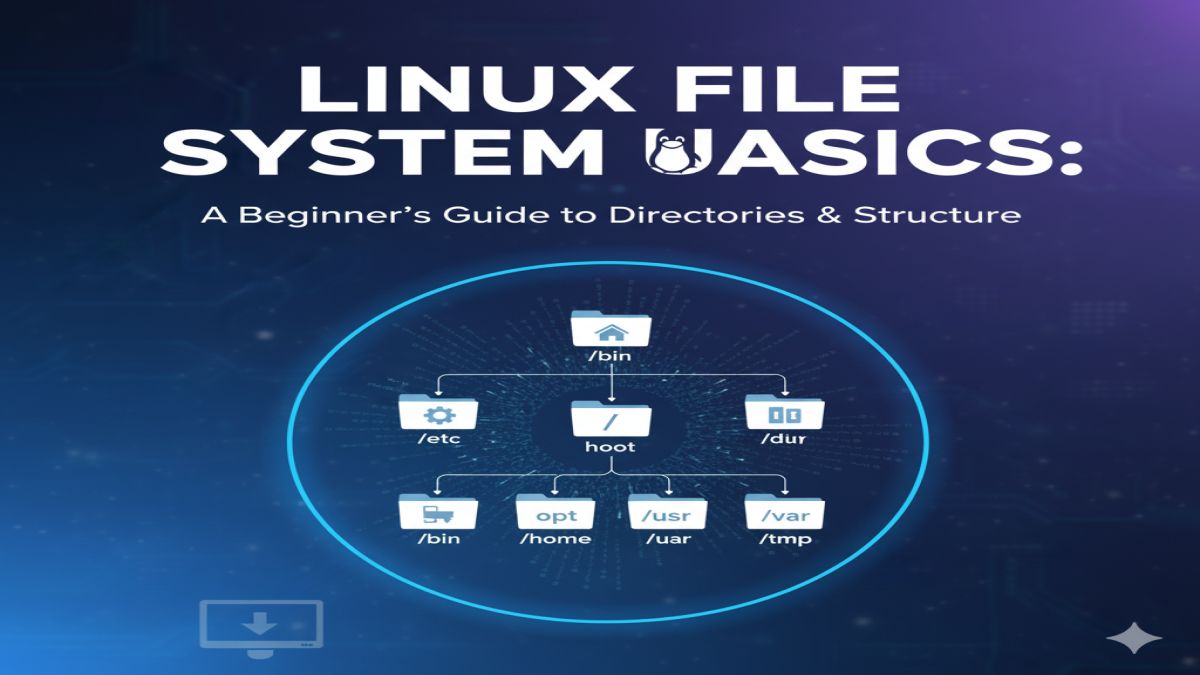
The Linux file system is a hierarchical structure that organizes data, files, and directories in a tree-like format starting from a single root directory denoted by /. Unlike Windows drives (like C:\ or D:\), Linux uses one unified directory tree.
🌲 Linux Directory Structure Overview
The root directory / contains all files and directories. Here are the most important top-level directories you’ll encounter:
| Directory | Purpose |
|---|---|
/ | Root directory, the starting point |
/bin | Essential command binaries (programs) |
/boot | Boot loader files and Linux kernel |
/dev | Device files (hardware interfaces) |
/etc | System configuration files |
/home | User home directories |
/lib | Shared libraries for binaries |
/media | Mount points for removable media (USB, DVD) |
/mnt | Temporary mount points |
/opt | Optional add-on software packages |
/proc | Virtual filesystem providing process/kernel info |
/root | Home directory of the root user (administrator) |
/sbin | System binaries (for admin tasks) |
/srv | Data for services provided by the system |
/tmp | Temporary files |
/usr | User utilities and applications |
/var | Variable data files like logs and databases |
🔍 Understanding Key Directories
/home: This is where user data lives. Each user gets a folder here (/home/username) for personal files and settings./etc: Contains system-wide configuration files, such as network settings, user permissions, and services./bin&/usr/bin: Where executable programs and commands reside. For example, common commands likels,cp,mvare stored here./dev: Special files representing hardware devices like hard drives, USBs, and printers./proc: A virtual file system displaying kernel and process info dynamically.
📄 Linux File Types
Linux files are not just plain files; they come in several types:
| File Type | Description |
|---|---|
| Regular file | Text files, executables, documents |
| Directory | Folder that contains files and other directories |
| Symbolic link | Shortcut or reference to another file |
| Character device | Hardware devices like keyboard, mouse |
| Block device | Devices that transfer data in blocks (e.g., hard disks) |
| Socket | Used for network communication |
| FIFO (named pipe) | Used for inter-process communication |
You can see a file’s type using the ls -l command in the terminal, where the first character indicates the type (- for regular, d for directory, l for symlink).
🔐 File Permissions Basics
Linux has a powerful permission system to control who can read (r), write (w), or execute (x) files.
Permissions are assigned to three groups:
- User (u) – Owner of the file
- Group (g) – Group associated with the file
- Others (o) – Everyone else
You can view permissions with ls -l, which shows something like this:
-rwxr-xr--
- The first character indicates the file type (
-regular file,ddirectory). - The next nine characters represent permissions for user, group, and others in sets of three (
rwx).
📌 Basic Commands to Navigate Linux File System
ls– List directory contentscd <directory>– Change directorypwd– Print current directorymkdir <directory>– Create a new directorytouch <file>– Create an empty filerm <file>– Remove a filermdir <directory>– Remove an empty directorycp <source> <destination>– Copy files or directoriesmv <source> <destination>– Move or rename files/directories
💡 Tips for Exploring the Linux File System
- Use
treecommand (install withsudo apt install tree) for a visual directory tree. - Learn to use
findto locate files:find /home -name "*.txt" - Use
du -hto check disk usage by directory.
🔚 Conclusion
The Linux file system may seem complex at first, but once you understand the root structure, key directories, file types, and permissions, navigating and managing your system becomes intuitive and powerful.
Getting comfortable with Linux file system basics is an essential skill whether you’re a developer, sysadmin, or Linux enthusiast.