Introduction
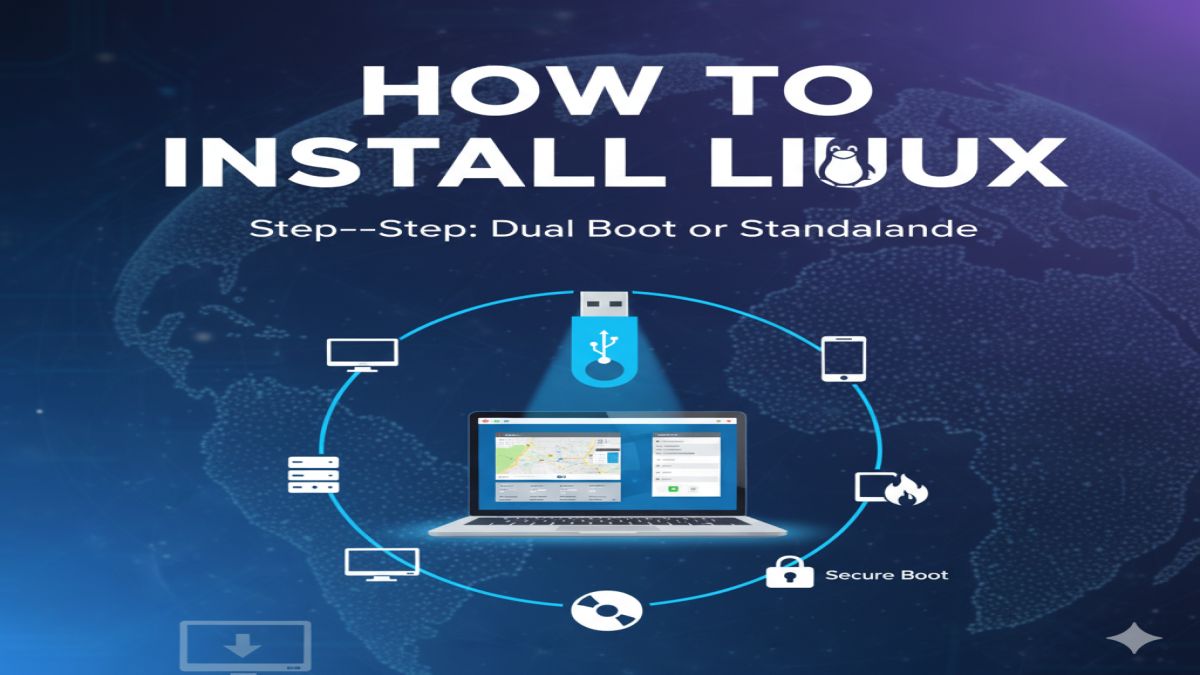
Are you ready to try Linux but not sure where to start? Whether you want to speed up an old PC, explore open-source software, or learn programming, Linux is a powerful and free operating system you can install in just a few steps.
In this guide, you’ll learn how to install Linux (Ubuntu) — one of the most popular and beginner-friendly Linux distributions — on your computer using a USB stick.
Why Choose Linux?
Before we get into the steps, here’s why millions are switching to Linux:
- Free & Open Source – No licensing fees or vendor lock-in.
- Secure & Private – Less prone to viruses and no hidden tracking.
- Fast & Lightweight – Works great even on old hardware.
- Customizable – Change everything from your desktop to the kernel.
- Developer-Friendly – Perfect for coding, DevOps, and server work.
Popular Linux distros include Ubuntu, Linux Mint, Fedora, and Debian — but this guide focuses on Ubuntu due to its ease of use.
📦 What You Need Before Installing Linux
🔧 Tools & Files Required:
- A USB flash drive (4GB minimum, 8GB+ recommended)
- A working computer with internet access
- The Ubuntu ISO file (Download here)
- A tool to create a bootable USB (e.g., Rufus or Balena Etcher)
🚀 Step-by-Step: How to Install Ubuntu Linux
🔹 Step 1: Download the Ubuntu ISO File
Go to ubuntu.com/download/desktop and download the latest Ubuntu Desktop ISO (usually LTS version is recommended for stability).
🔹 Step 2: Create a Bootable USB
🖥️ On Windows:
- Download Rufus from rufus.ie
- Plug in your USB drive
- Open Rufus → Select your USB
- Load the Ubuntu ISO
- Click Start, wait for completion
💻 On Mac/Linux:
Use Balena Etcher:
- Download from balena.io/etcher
- Select Ubuntu ISO, your USB drive, and click Flash
🔹 Step 3: Boot Into Ubuntu
- Insert your USB into the target PC
- Restart and press the key for Boot Menu (usually
F12,F2,Esc, orDel) - Select the USB drive from the boot menu
- You’ll see the Ubuntu welcome screen
🔹 Step 4: Try or Install Ubuntu
You have two options:
- Try Ubuntu – Run Ubuntu without installing (Live Mode)
- Install Ubuntu – Begin full installation
Click Install Ubuntu to continue.
🔹 Step 5: Choose Installation Settings
- Keyboard Layout – Select your preferred layout
- Updates and Software – Choose Normal or Minimal install
- Installation Type:
- Erase disk and install Ubuntu – Wipes all data (⚠️)
- Install alongside Windows – Creates a dual-boot setup
- Something else – Manual partitioning (advanced users)
- Timezone – Set your region
- Create User Account – Choose a username and password
Click Install Now, confirm changes, and let the installer run (usually takes 10–20 minutes).
🔹 Step 6: Restart & Enjoy Linux
Once installed, remove your USB drive and reboot the system. You’re now running Ubuntu Linux!
💡 Tips After Installing Linux
🛠️ Update Your System
Run the following command to ensure everything is up-to-date:
sudo apt update && sudo apt upgrade -y
🔍 Install Software
Use the Ubuntu Software Center or Terminal:
sudo apt install vlc gimp chrome
🎨 Customize the Look
Use GNOME Tweaks, themes, and extensions to personalize your desktop.
🤔 FAQs About Installing Linux
❓ Can I keep Windows and install Linux too?
Yes! Just choose the “Install alongside Windows” option during installation to create a dual-boot system.
❓ Will Linux work on an old laptop?
Yes! Ubuntu works well, but you can also try lighter distros like Lubuntu or Xubuntu.
❓ Do I need to know coding to use Linux?
No. Most Linux distros are user-friendly with graphical interfaces — no coding required.
Final Thoughts
Installing Linux is no longer a technical challenge — it’s quick, clean, and often easier than installing Windows. With Ubuntu, you get a powerful, privacy-respecting, open-source operating system for free.
Whether you’re a developer, student, gamer, or just tech-curious, Linux offers freedom and control that mainstream systems don’t.